Virtual Staging
Virtual staging lets you transform interior photos - remove existing furniture, add new furnishings, or do both in one step.
Watch a quick tutorial on Virtual Staging AI
Uploading a Photo
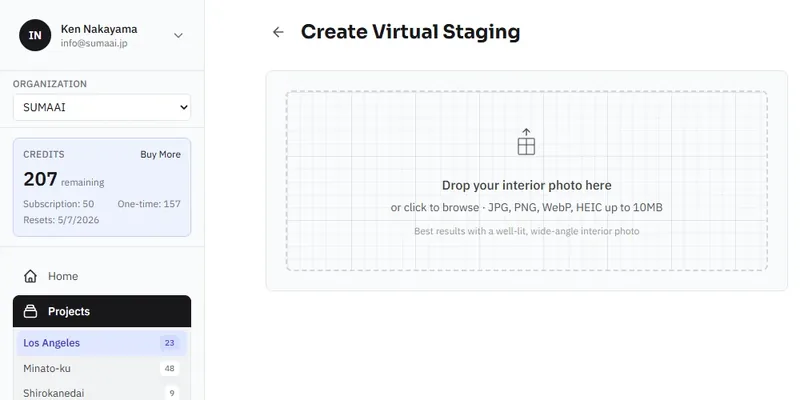
- Navigate to your project, click Create New Asset, and select Stage & Declutter.
- Drag and drop your photo or click browse to select a file.
- Formats: JPG, PNG, WEBP, HEIC
- Max size: 10 MB
- Best results: Well-lit, wide-angle interior photo
Staging Modes
Choose one of three modes depending on your starting photo:
Clean Up
Removes existing furniture and belongings, leaving the room empty. Best for:
- Occupied properties you want to show as blank canvas
- Rooms with clutter that needs to be cleared
Cleanup options:
- Upscale photo - enhances resolution and sharpens details
- Clean walls, ceiling & flooring - removes stains, scuff marks, and imperfections from surfaces
Stage
Fills an empty room with stylish furniture and decor. Best for:
- Vacant properties
- Photos that are already empty
Clean Up + Stage
A combined two-step workflow: first removes existing items, then stages with new furniture and decor. This is the most convenient option for furnished rooms.
Note: Clean Up + Stage requires the Premium tier. With Classic, use Clean Up and Stage as separate steps.
Styling Options
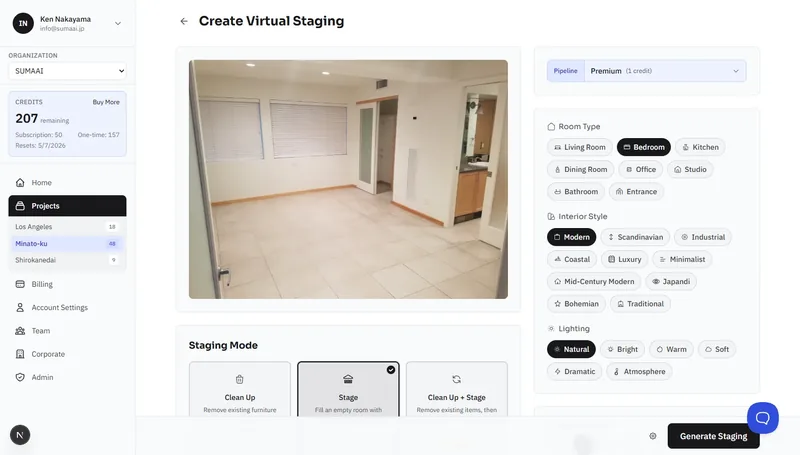
When staging (or cleaning + staging), you can customize the look:
Interior Style
Choose from 10 design aesthetics:
| Style | Description |
|---|---|
| Modern | Clean lines, neutral palette, contemporary feel |
| Minimalist | Sparse, functional, lots of open space |
| Scandinavian | Light woods, white walls, cozy textiles |
| Industrial | Exposed elements, metal accents, raw textures |
| Mid-Century Modern | Retro-inspired, organic shapes, warm tones |
| Japandi | Japanese minimalism meets Scandinavian warmth |
| Coastal | Beach-inspired, light blues, natural materials |
| Bohemian | Eclectic, colorful, layered textiles |
| Traditional | Classic furniture, rich colors, elegant details |
| Luxury | High-end finishes, premium materials, statement pieces |
Room Type
Tell the AI what kind of room it's looking at:
- Living Room
- Bedroom
- Kitchen
- Dining Room
- Living / Dining / Kitchen (LDK)
- Bathroom
- Office
- Studio
- Entrance
Lighting
Set the mood of the staged photo:
- Natural - daylight through windows
- Bright - well-lit, airy feel
- Warm - golden, inviting tones
- Soft - gentle, diffused light
- Dramatic - high contrast, moody shadows
- Atmosphere - ambient, evening feel
Additional Notes
A free-text field where you can provide specific instructions, for example:
- "Use a blue velvet sofa and gold accents"
- "Keep the existing hardwood floors visible"
- "Add a reading nook by the window"
For cleanup mode, you might write:
- "Preserve the plant in the corner"
- "Remove everything except the ceiling fan"
Quality Tiers
Classic
- Uses capable AI models
- Good for most use cases
- Generates up to 20 renders per upload
- Faster processing
Premium
- Uses cutting-edge AI models
- Higher quality results, especially for challenging photos
- Generates up to 8 renders per upload
- Supports Clean Up + Stage combined mode
- Unlocks Refine for post-generation editing
Generating
Click Generate Staging to start. You'll see:
- A progress bar with percentage
- Live status updates ("Cleaning up room...", "Generating staging variations...")
- Animated placeholders that fill in as results complete
- A Cancel button if you change your mind
Once complete, you'll be taken to the results page where you can browse, compare, and download your staged photos.
Tips for Best Results
- Use wide-angle photos - they give the AI more context about the room layout.
- Good lighting matters - well-lit photos produce more realistic staging.
- Choose the right room type - this helps the AI place appropriate furniture.
- Front-facing shots work best - angled or distorted perspectives can reduce quality.
- Add notes for specifics - if you want particular furniture or colors, mention them in the Additional Notes field.