Account Settings
Manage your profile, security, watermarks, and API access. The settings page has two tabs: Profile and Account (the Account tab is visible to organization owners and admins).
Profile Tab
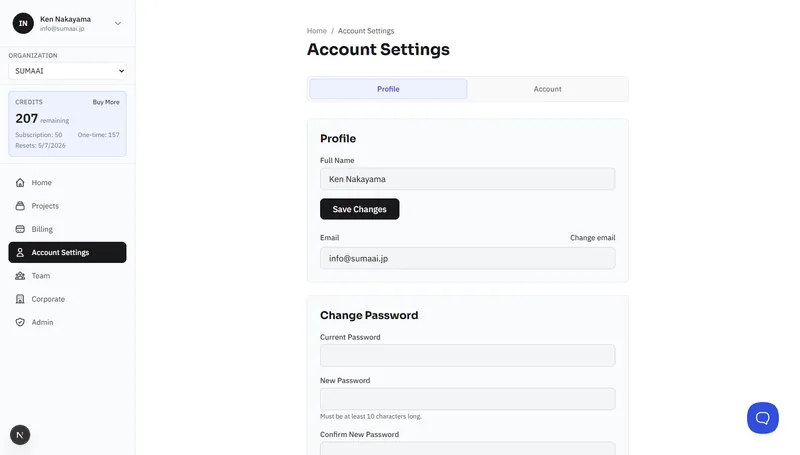
Full Name
Update the name displayed across the platform.
Your login email is shown here. To change it:
- Click Change email.
- Enter your new email address.
- Click Send Verification.
- Check your new inbox and click the verification link.
If you have 2FA enabled, you'll need to enter your authentication code to confirm the change.
Change Password
- Enter your current password.
- Enter a new password (minimum 10 characters).
- Enter the new password again to confirm.
- If 2FA is enabled, enter your authentication code.
- Click Save Changes.
Two-Factor Authentication (2FA)
Add an extra layer of security using an authenticator app (Google Authenticator, Authy, etc.).
Enabling 2FA:
- Click Enable Two-Factor Authentication.
- Scan the QR code with your authenticator app (or enter the key manually).
- Enter the 6-digit code from your app to verify.
- Save your backup codes - you'll receive 10 one-time-use codes. Store them somewhere safe.
Backup Codes:
- Each code can only be used once.
- Use them if you lose access to your authenticator app.
- You can see how many remain (e.g., "8 of 10 backup codes remaining").
- Click Regenerate Backup Codes to get a fresh set (this invalidates old codes).
Trusted Devices:
When logging in with 2FA, you can choose Trust this device for 30 days. You can manage trusted devices from the settings:
- View all trusted devices.
- Revoke individual devices.
- Revoke All Devices to require 2FA everywhere.
Disabling 2FA:
Click Disable Two-Factor Authentication and confirm.
Appearance
Select your preferred language for the interface.
Account Tab
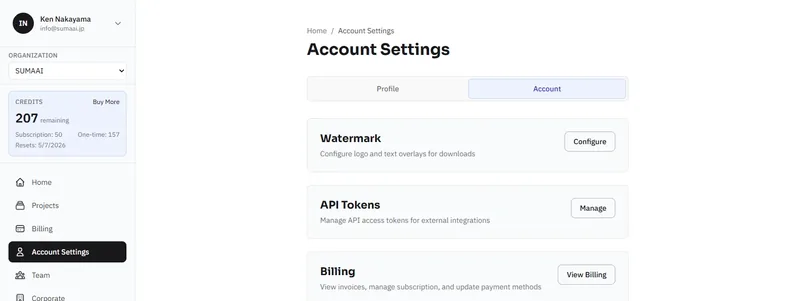
The Account tab is available to organization owners and admins. It provides links to:
Watermark
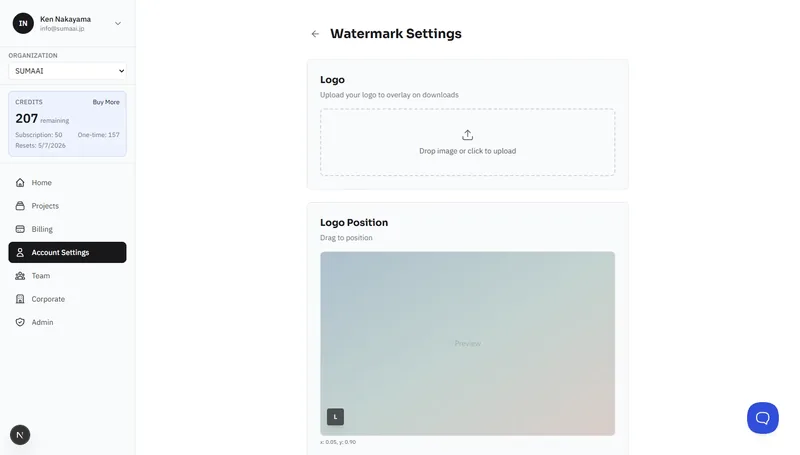
Configure logo and text overlays for downloads. Click Configure to open the watermark settings page.
Logo Watermarks:
You can add up to 10 logos (PNG, JPG, SVG, or WebP - max 2 MB each), for example a brokerage logo and an agent logo.
- Click Add logo (or drop an image onto the section) to upload a logo.
- Drag a logo on the preview image to move it.
- Select a logo and drag a corner handle to resize it. The logo keeps its proportions.
- Use each logo's Size and Opacity sliders to fine-tune it. Lower opacity makes the logo more transparent.
- Click Remove next to a logo to delete it.
- Toggle Auto-apply logos on download to have them applied automatically.
Disclaimer Text:
Add a text overlay - useful for legal disclaimers on staged photos:
- Add furniture disclaimer - e.g., "Furniture shown for illustration purposes only"
- Remove furniture disclaimer - for cleanup results
- Set the position on the image.
- Adjust Label size and Label opacity to make the label larger, smaller, or more transparent.
- Toggle Auto-apply disclaimer on download.
Click Save to apply your changes.
API Tokens
Generate tokens for programmatic access to the Virtual Staging ART API. Click Manage to open the tokens page.
- Click Generate Token.
- Copy the token immediately - it will not be shown again.
- Use the token in your API requests for authentication.
You can view all your active tokens with their creation and expiry dates. Click Revoke to deactivate a token.
Billing
Click View Billing to go to the billing page. See the Billing & Credits guide for details.
Account Info
Read-only information about your account:
- Account ID - your unique identifier
- Email Verified - whether your email has been confirmed
- Organization - the name of your organization