Rendering Issues
Sometimes a render won't match your expectations. This guide covers the most effective ways to improve your results, from quick adjustments to getting help from our team.
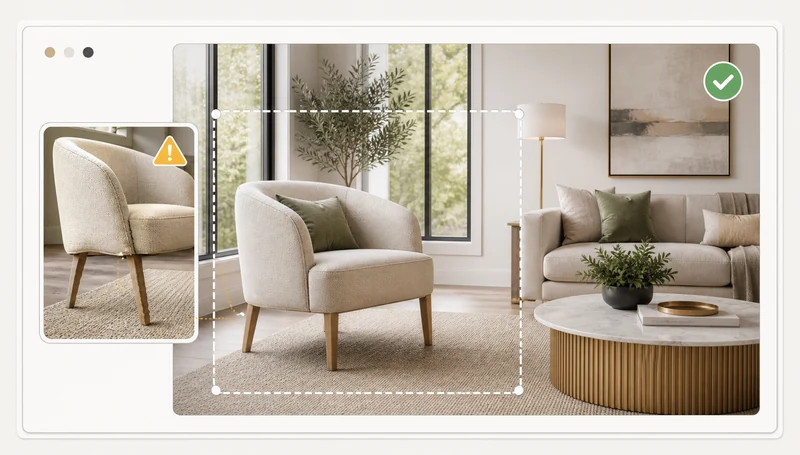
Step 1: Adjust Your Inputs
The most common cause of unexpected results is the input configuration. Before using additional credits, review your settings and try again.
Virtual Staging
- Room type - make sure the selected room type matches the photo. Selecting "Bedroom" for a living room photo will produce furniture that doesn't fit the space.
- Style mismatch - some styles work better in certain rooms. If a style looks off, try a complementary option (e.g. switch from Bohemian to Scandinavian for a small room).
- Photo quality - dark, blurry, or heavily distorted photos produce weaker results. Use a well-lit, wide-angle shot whenever possible.
- Staging mode - if furniture from the original photo is bleeding through, switch from Stage to Clean Up + Stage so existing items are removed first.
House Rendering
House renders depend heavily on the plot boundary, building outline, and height reference you set during setup. If the generated building looks wrong in scale, shape, or perspective, go back and adjust:
- Plot boundary - drag the blue corners so they tightly match the actual plot edges. An inaccurate boundary causes the building to float, clip, or appear misaligned with the surroundings.
- Building outline (existing building workflow) - make sure the outline closely follows the real building's edges. A loose outline produces a loose result.
- Height reference - this is the single most impactful setting. If the reference line is too short or too tall, the entire building will be out of scale. Align it to a known object (a neighboring building, a fence, a door) and set the correct number of floors.
- Number of floors - double-check this matches what you want. A mismatch between the floor count and height reference creates buildings that look compressed or stretched.
- Architectural style + notes - if the design doesn't match your vision, add specific notes like materials ("white rendered walls with timber cladding"), roof type ("flat roof with parapet"), or context ("narrow urban lot, zero setback on left").
After adjusting, click New Render to regenerate with the updated inputs.
Photo Editing
- Mask accuracy - if edits appear in the wrong area, repaint your mask more precisely.
- Prompt clarity - be specific. "Make it look better" is vague; "replace the grass with a paved driveway" gives the AI a clear target.
Step 2: Use Refinement
If the overall result is close but has specific issues - an artifact in one area, a color that's off, or a detail that needs fixing - use Refinement instead of regenerating from scratch.
Refinement is available on Premium tier results. On the results page, click Refine to open the refinement editor.
When to Refine
- AI artifacts - glitches, warped edges, or unnatural textures in a specific area. Use the Remove Artifacts or Sharpen Details regional edit.
- Proportions - a window or door that looks too large or small. Use Fix Proportions.
- Style tweaks - you like the layout but want different materials or colors. Use Change Material or Change Color.
- Lighting or mood - the result is good but the time of day or atmosphere is wrong. Use the Global Changes panel to adjust time of day, sky, or lighting mood.
- Small additions - add a specific piece of furniture, a tree, or architectural detail using regional edits or custom instructions.
When NOT to Refine
- The building is the wrong scale or shape - go back to Step 1 and adjust your plot boundary, building outline, and height reference instead.
- The entire composition is off - regenerating with better inputs will be more effective than trying to fix everything through refinement.
See the Refining Results guide for full details on all available edits.
Step 3: Contact Support
If you've tried adjusting inputs and refinement but the result still isn't usable, our team can help.
How to Reach Us
- Email: Use the contact form on our Contact page or email us directly.
- In-app chat: Click the chat icon in the bottom-right corner of any page.
- Priority support: Available on Professional plans and above.
What to Include
When reaching out, include:
- The project name or a link to the result.
- A brief description of what went wrong and what you expected.
- What you've already tried (input adjustments, refinement, etc.).
This helps our team diagnose the issue quickly.
Credit Refunds
If a render is unusable due to an AI error (not a configuration issue), we may issue a credit refund at our discretion. Our team will review the result and your inputs to determine eligibility. Refunds are processed as credits returned to your account, not monetary refunds.