Viewing Results
After generating a staging, house render, or photo edit, you'll be taken to the results page.
Generation Progress
While your renders are being created, you'll see:
- A progress bar with percentage
- Status messages like "Generating design variations..." or "Generated 2 of 4 candidates..."
- Animated placeholders that fill in as each result completes
- A Cancel button to stop generation early
Browsing Results
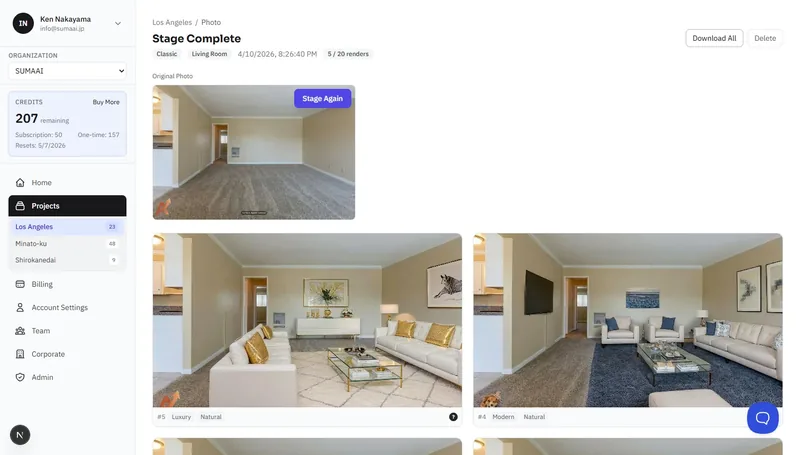
Results appear in a grid. Each variation is numbered (#1, #2, etc.) and shows:
- The generated image
- Status badges - the type of render (Staging, House Render, Photo Edit) and tier (Classic, Premium)
- Info badges - style, lighting, architecture, and other settings used
Original Photo
Your uploaded photo is always displayed as a reference above the results grid. For two-step workflows (Clean Up + Stage), you'll see:
- Original → Cleaned → Staged progression
Comparing Results
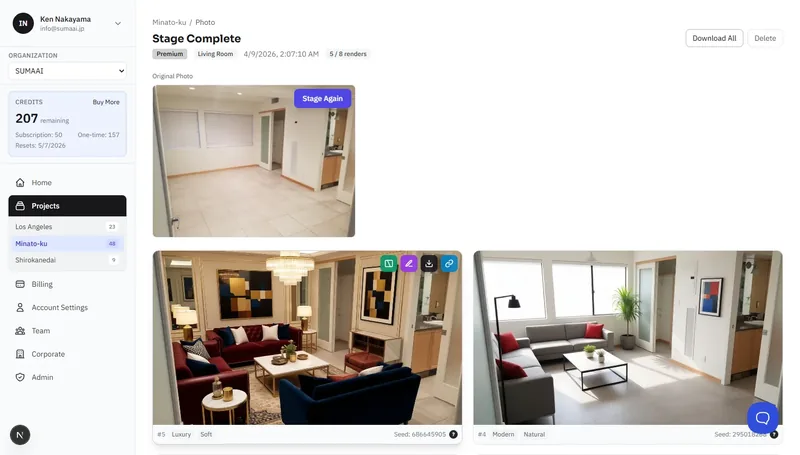
Hover over any result to reveal the action icons, then click the Compare icon to open the before/after slider:
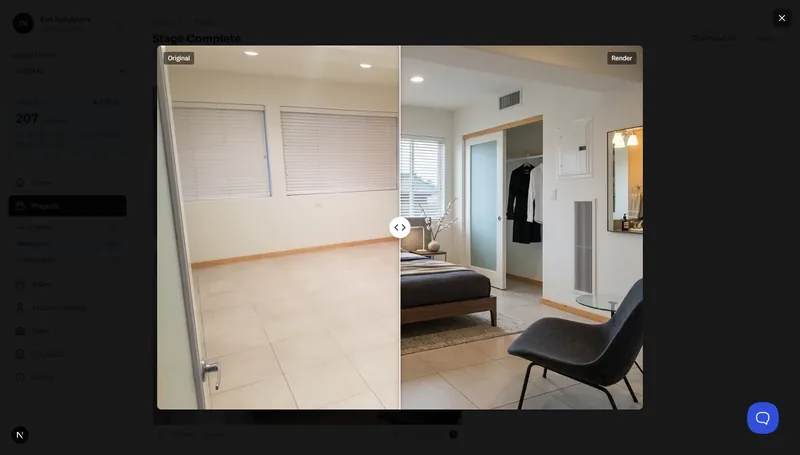
- Drag the handle left and right to reveal the original vs. the rendered version.
- Works in full-screen overlay.
- Press Esc to close.
Full-Screen Viewer
Click any result to open it in the full-screen viewer:
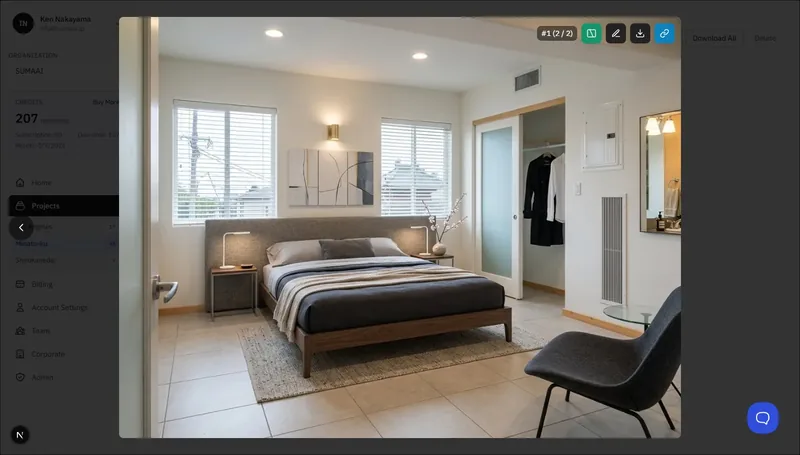
- Navigate between results using arrow keys or on-screen controls.
- Zoom in for detail.
- Access all actions (Compare, Refine, Download, Share) from the viewer toolbar.
Downloading
Single Image
Click Download on any result to save it to your device. If you've configured a watermark (logo or disclaimer), it will be applied automatically based on your settings.
Download All
Click Download All to get a ZIP file containing every result from the run. Watermarks are applied to each image according to your settings.
Sharing
- Click Share on a result.
- A public link is generated and copied to your clipboard.
- Anyone with the link can view the image (view-only, no login required).
- Shared pages show "Powered by Virtual Staging ART" branding.
Stage This Photo
On cleanup results, you'll see a Stage button. This takes the cleaned image and opens the staging workflow with it pre-loaded.
Generate More
After viewing results, you can generate additional variations with the same settings:
- Click Stage Again, Render Again, or Edit Again on the original photo.
- Select the number of additional renders.
- The system shows how many free renders remain and the credit cost for any extras.
- Click Generate.
Refining Results
Premium tier results show a Refine button. See the Refining Results guide for details on post-generation editing.
Deleting a Run
Click Delete on the results page to remove the entire run and all its results. You'll be asked to confirm - this action cannot be undone.