Team Management
Invite team members to collaborate on projects and share credits within your organization.
Note: Team features are available on Agency and Corporate plans.
Inviting Members
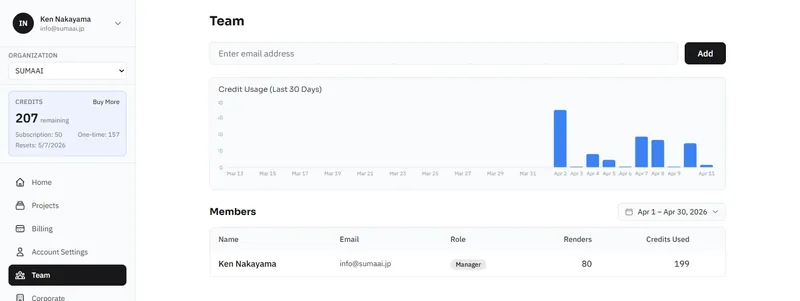
- Navigate to Team in the sidebar.
- Enter the person's email address in the invite field.
- Click Add.
New members are added with the Member role - they can create projects and renders using shared credits.
The invitee receives an email with a signup/join link. Until they accept, they appear in the Pending Invites section where you can cancel the invite if needed.
Member List
The team page shows all members with:
- Name and email
- Role
- Number of renders created
- Credits used in the last 30 days
Managing Members
- Remove - click to remove a member from the team (owner/admin only)
- Transfer Manager Role - transfer ownership of the organization to another member
Team Analytics
Track credit usage across your team:
- Credit usage chart - a bar chart showing daily usage over the past 30 days
- Date range picker - customize the time period
- Member breakdown - see usage per team member
Corporate / Organization Management
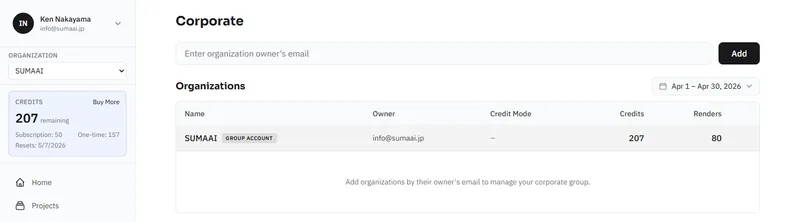
For Corporate accounts with sub-organizations:
Child Organizations
- Add organizations by entering the owner's email
- Set credit mode:
- Shared - the child organization uses credits from the parent
- Own - the child organization manages its own credits
- View organization analytics
- Remove child organizations when needed
IP Whitelist
Restrict access to your organization by IP address:
- Go to Corporate settings.
- Enter allowed IP addresses or CIDR ranges (one per line).
- Enable the restriction.
Only users connecting from whitelisted IPs will be able to access the platform.