Furniture Removal and Virtual Staging for Occupied Homes
Prepare listing photos before the current tenant moves out. Built for property managers, leasing teams, and real estate marketers who need listing photos before a unit is fully vacant.
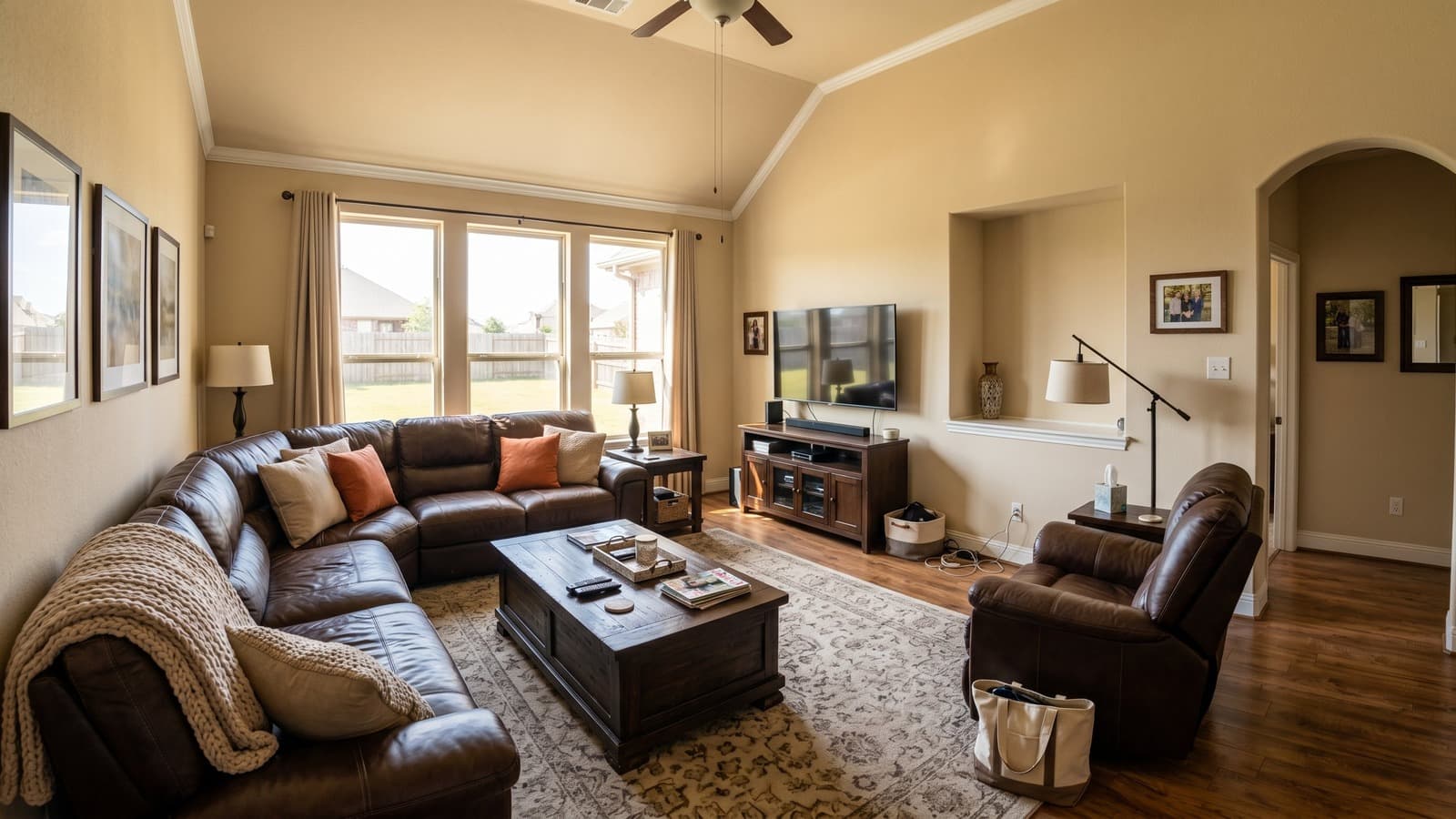
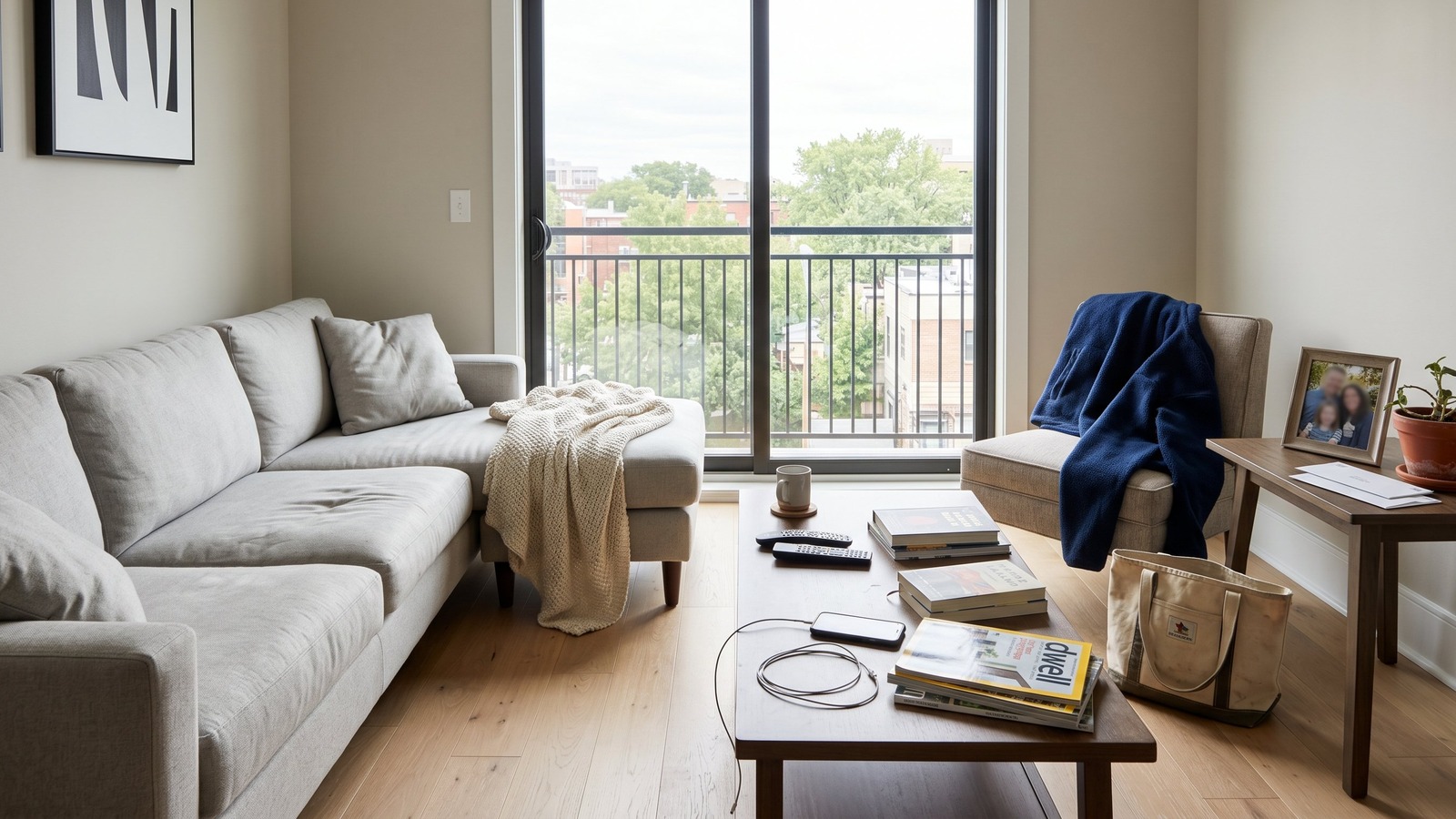 Occupied
Tenant-occupied photo
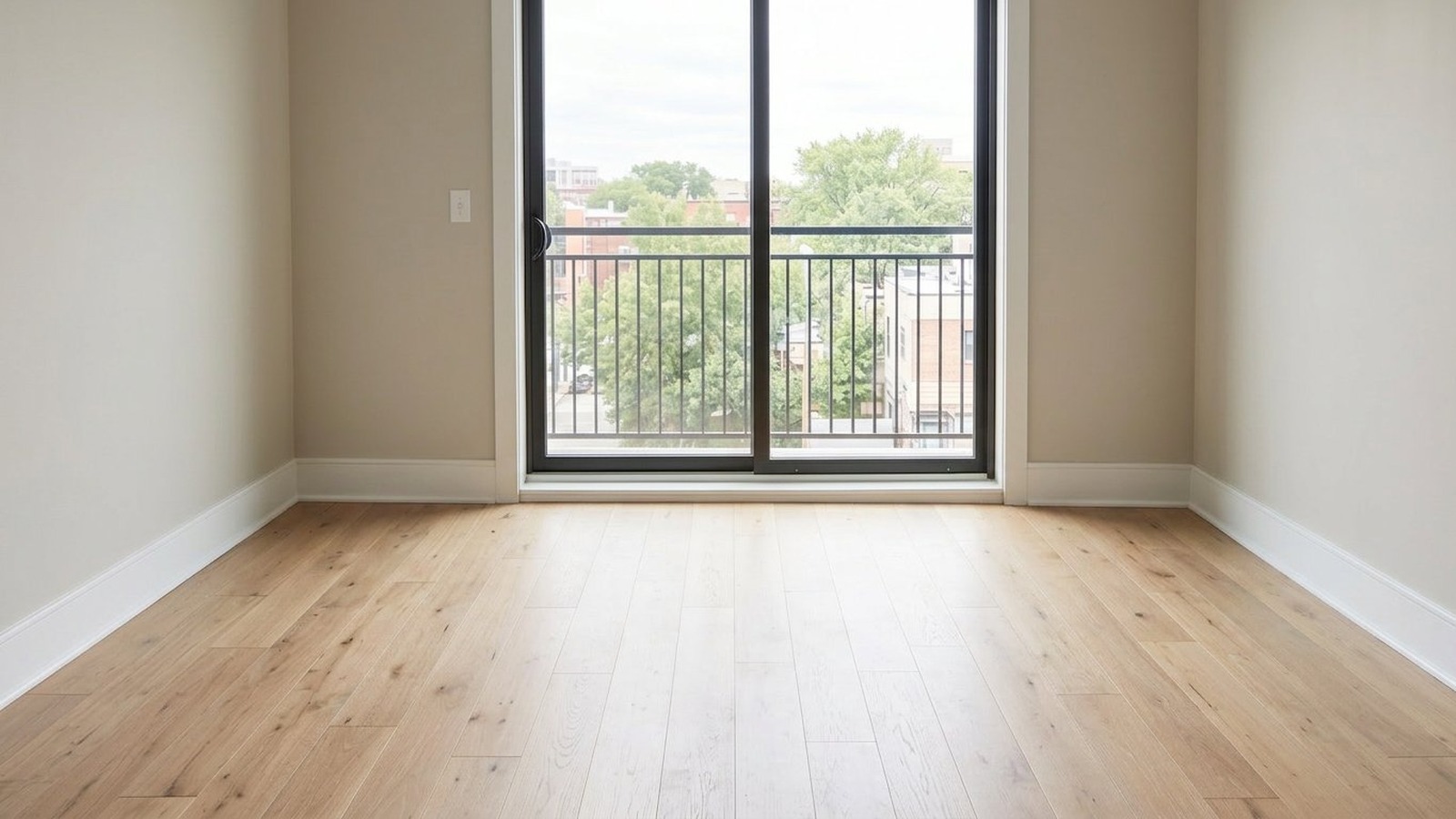 Cleared
Clean, unfurnished room
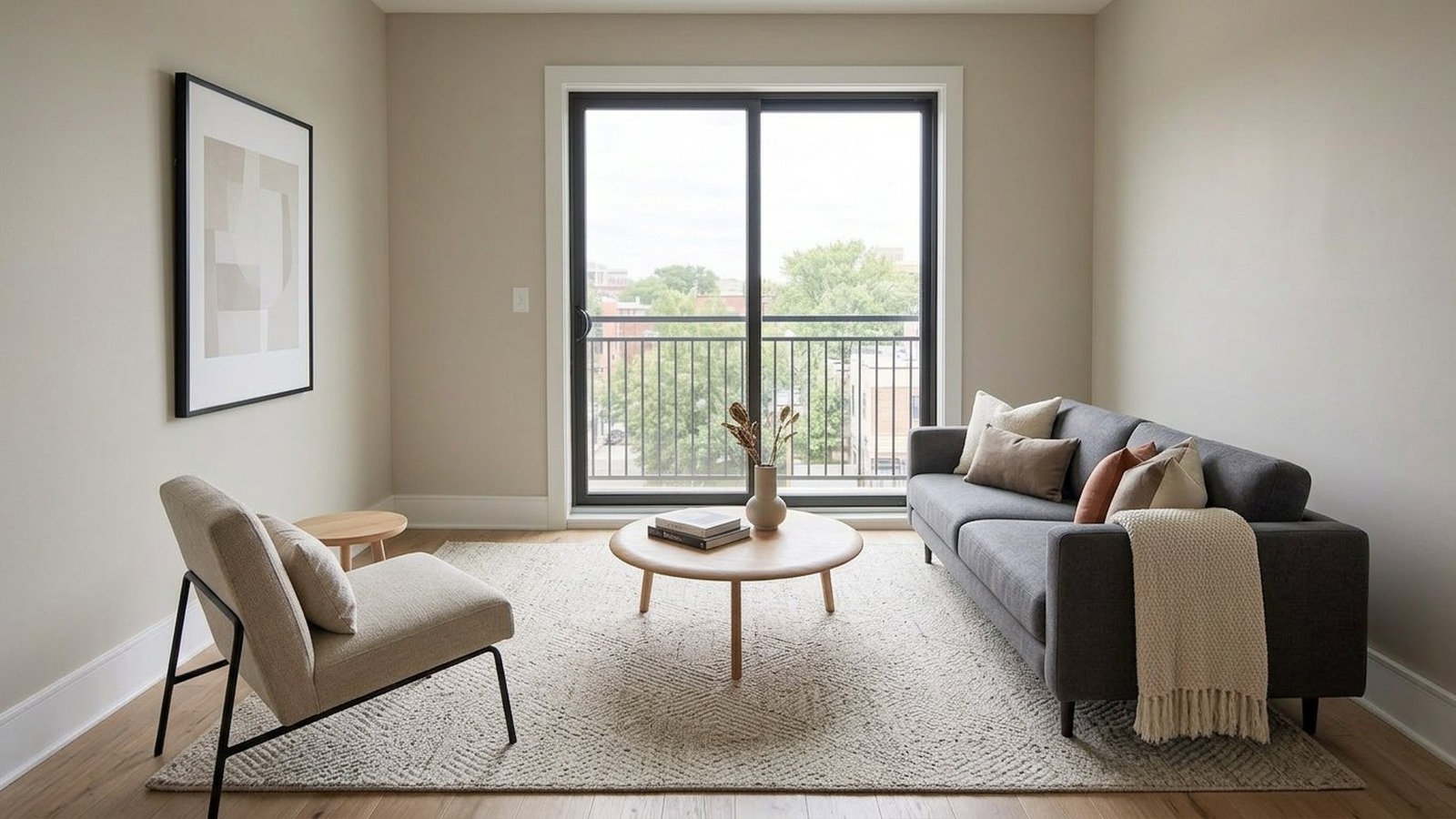
Ready for the next renter
Occupied
Cleared
Staged
Prepare upcoming vacancies for listing before tenants have moved out
Preparing an occupied property for listing is difficult, especially when you need clean interior photos. Existing furniture, personal belongings, and everyday clutter can make rooms feel smaller, busier, and less attractive to potential renters or buyers.
With AI furniture removal and decluttering, you can clear movable items from the photo, create a clean unfurnished version of the room, and then use virtual staging to prepare listing-ready images before the property is vacant.
Decluttering
Removes smaller visual distractions from the photo: personal items, cords, boxes, laundry, paperwork, countertop clutter, loose shoes, and objects sitting on surfaces.
Furniture removal
Clears larger movable items such as beds, sofas, chairs, tables, desks, shelves, or bulky furniture that makes the space harder to market.
How occupied-home virtual staging works
Start with an occupied-room photo, let AI remove the existing furniture and belongings, then stage the cleaned room for the next renter or buyer. The goal is to produce a clean photo that is ready for virtual staging, or ready to use as a listing image as-is.
- AI analysis
Step 1
Upload the occupied photo
Use the clearest photo available, even if the room still has furniture, personal items, or everyday clutter. A normal occupied-room photo is enough to start.
- Furniture removedFurniture removalCleared preview
Step 2
AI removes furniture and clutter
The AI removes movable furniture and belongings from the photo, creating a clean, unfurnished version of the room. You can review the result before moving on to staging.
- Living roomModernReadyReady for listing
Step 3
Stage or publish the cleaned room
Choose a room type and interior style to create a staged version, or use the cleaned room directly when an unfurnished listing photo is the better fit.
Common scenarios for AI furniture removal
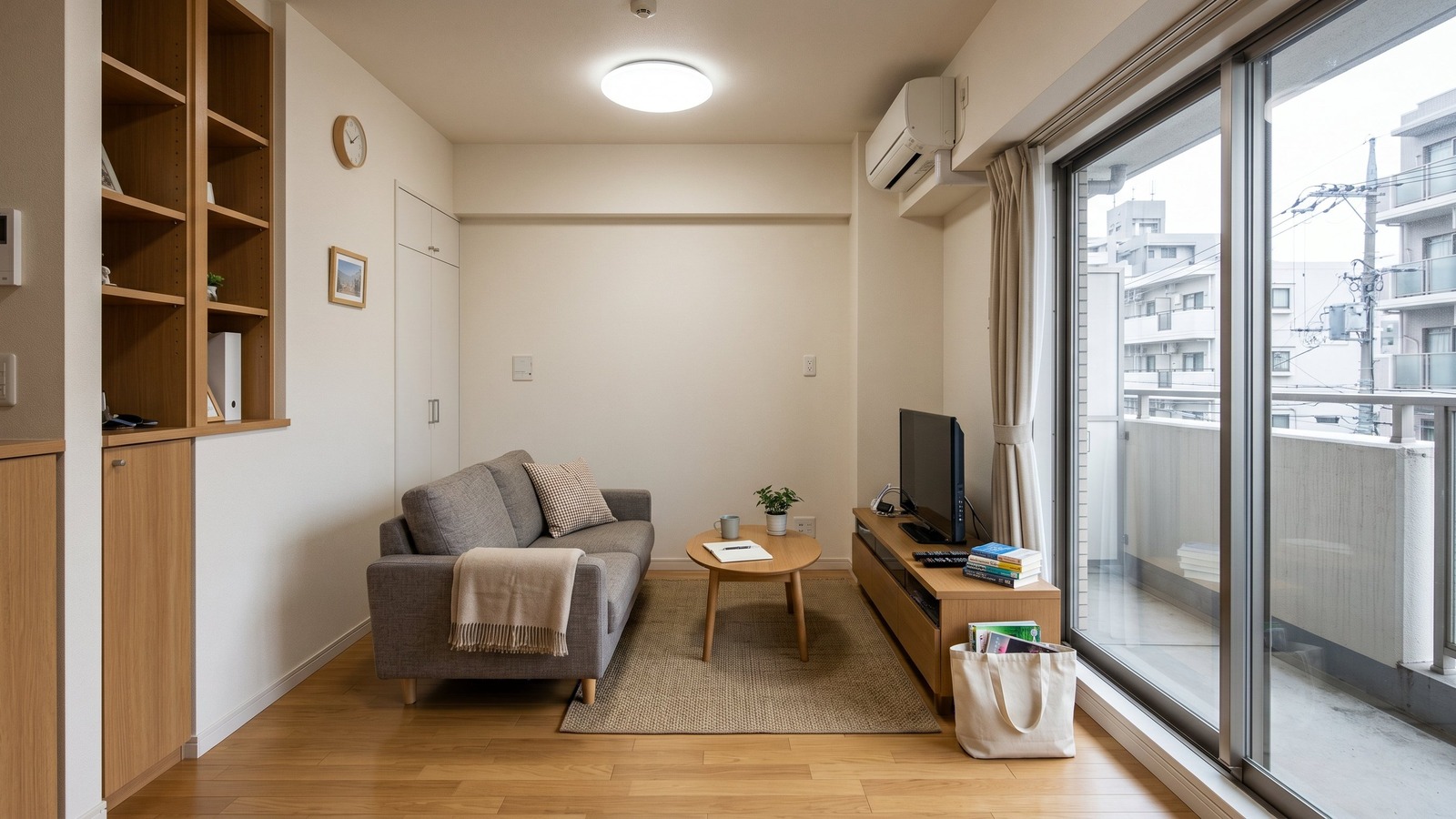 Tenant occupied
Tenant-occupied rentals
Prepare listing photos before move-out, especially when the unit is approaching lease end and you want to start marketing early.
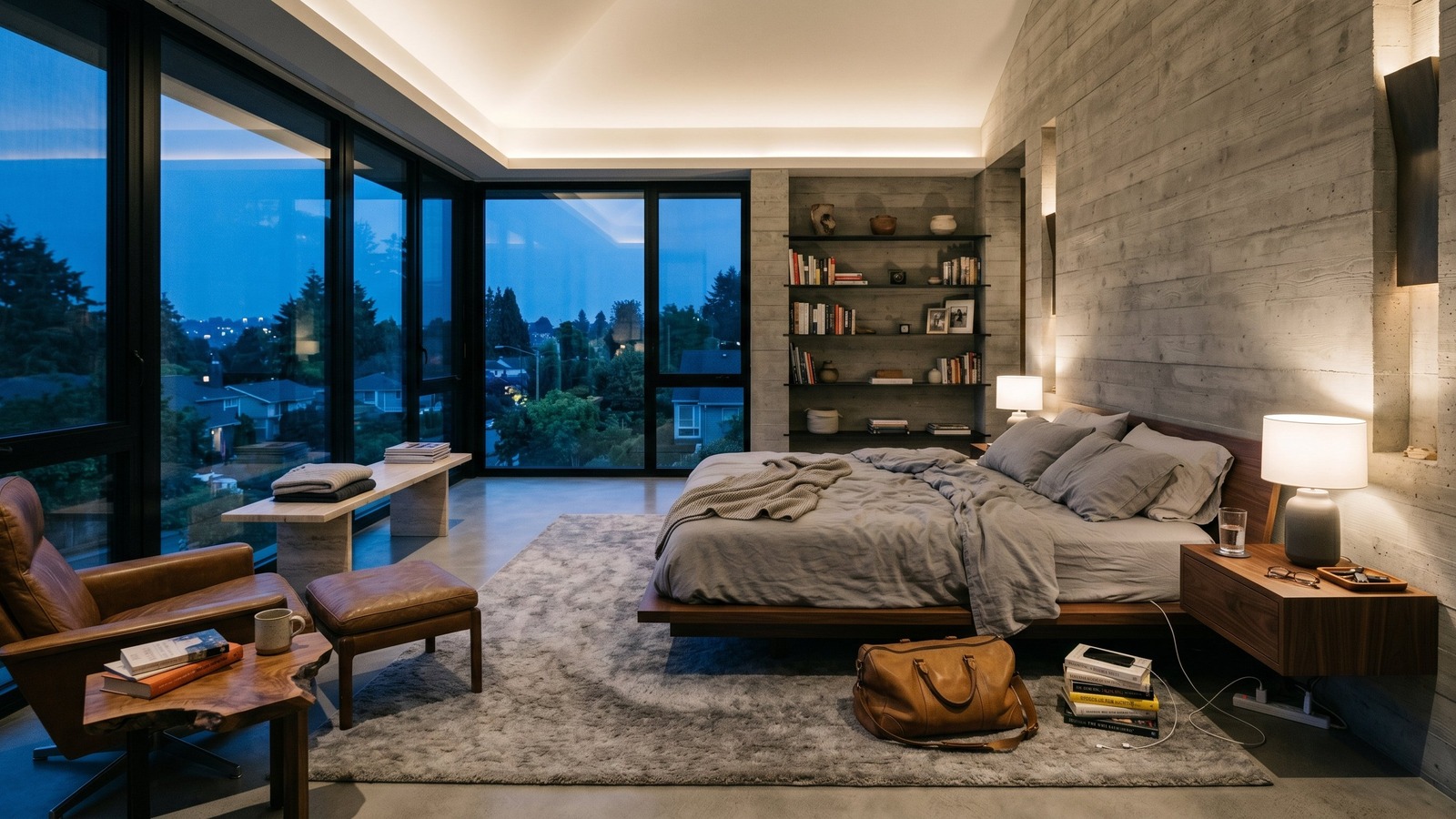 Personal items
Seller-occupied homes
Remove personal belongings and bulky furniture so buyers can focus on the room, not the current owner's style.
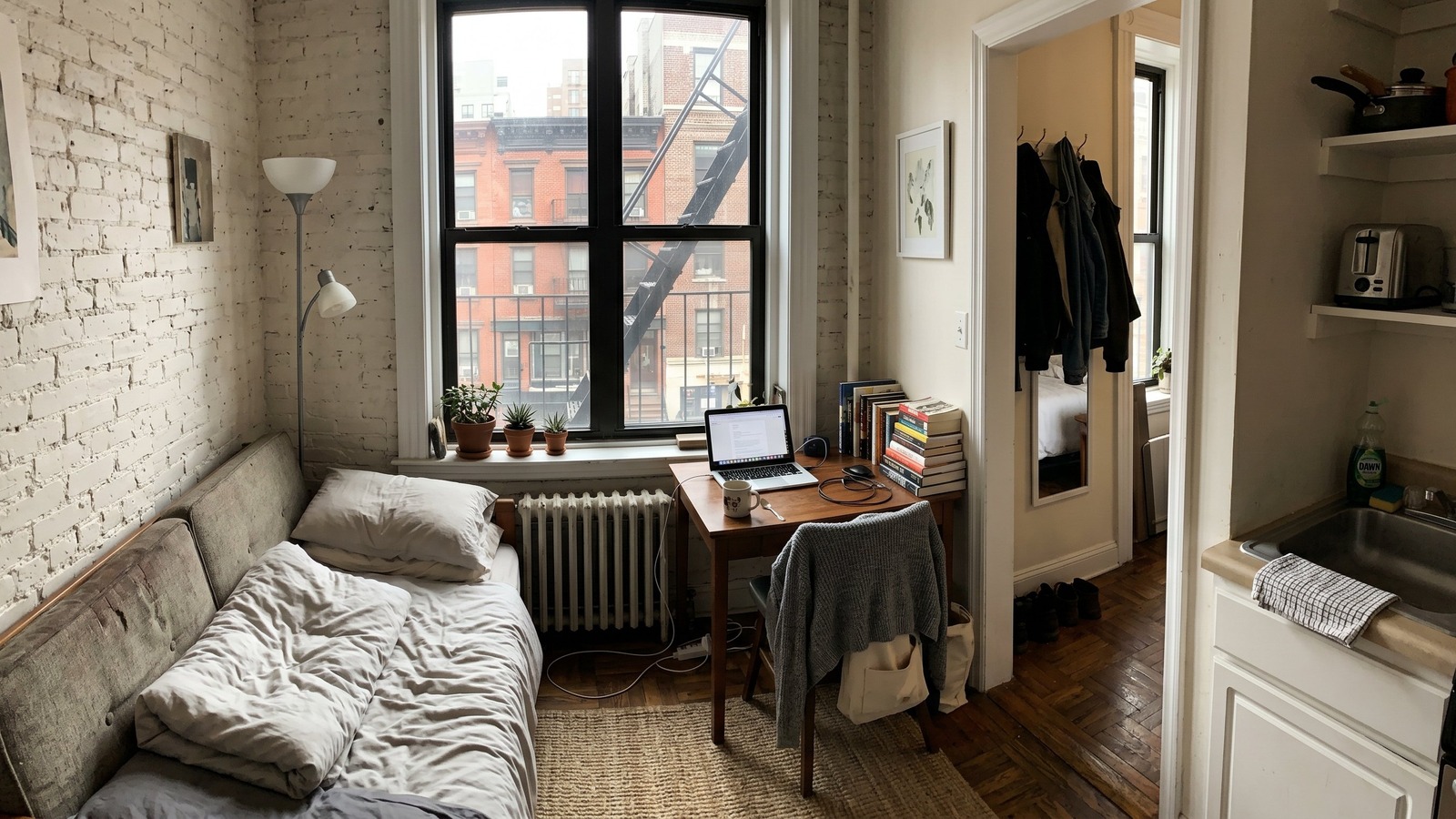 Compact layout
Small apartments and studios
Clear visual clutter from compact rooms so renters can understand the layout and imagine how the space can function.
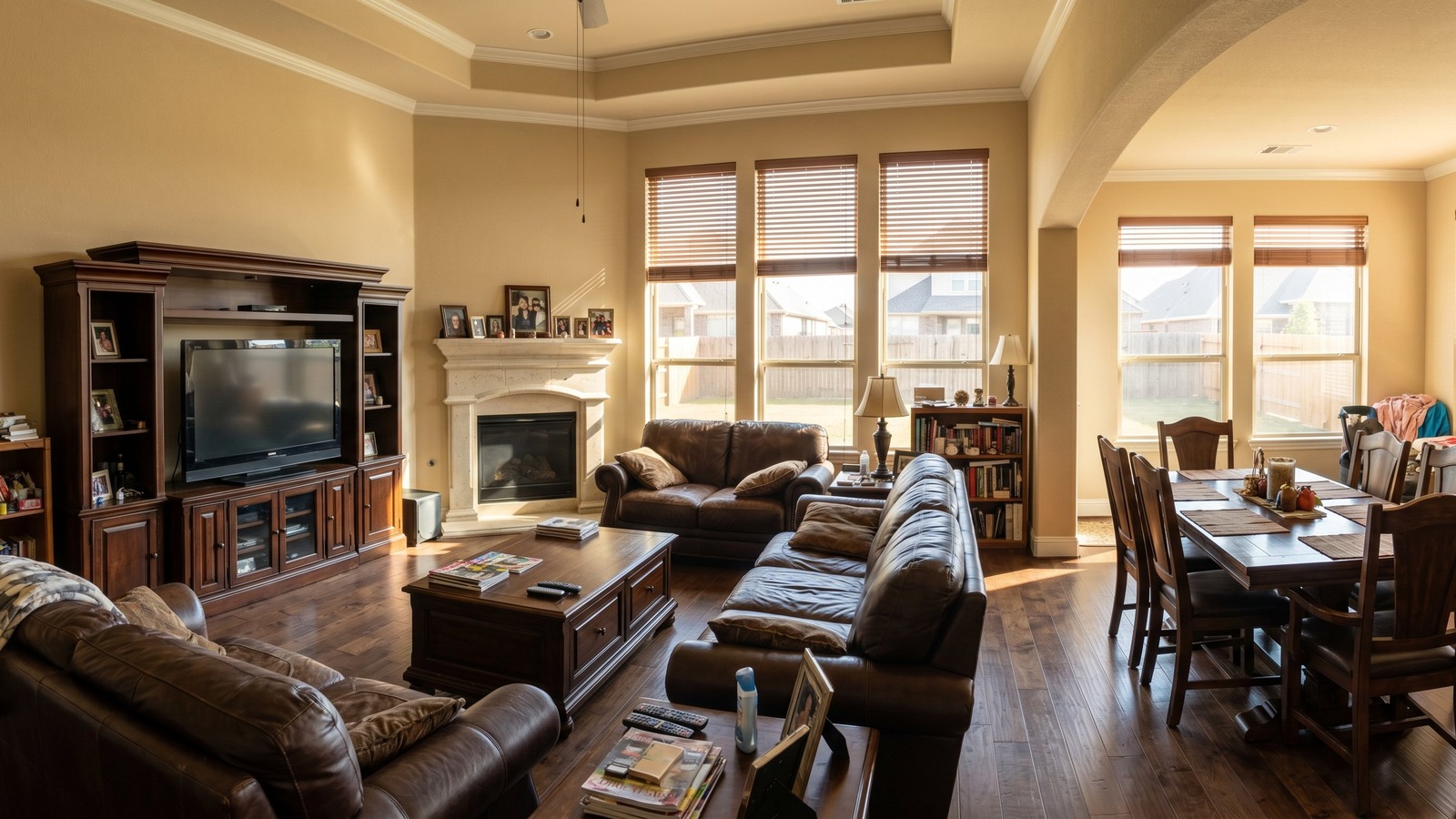 Bulky furniture
Dated or oversized furniture
Remove furniture that makes a room feel smaller, darker, or less current, then stage the cleaned photo in a style that better fits the market.
Occupied-home furniture removal examples
Compare a few rooms before and after AI furniture removal and decluttering.
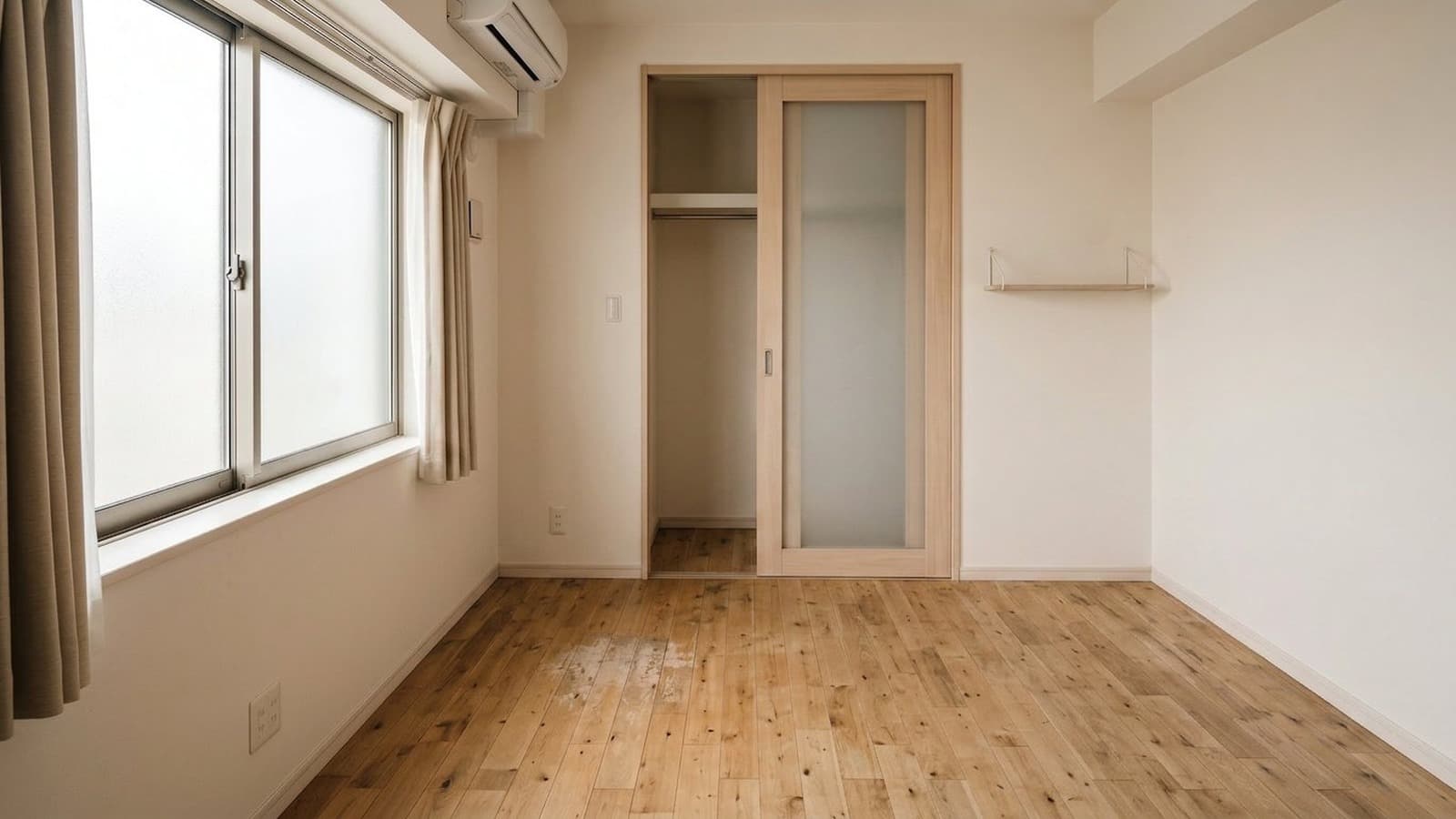
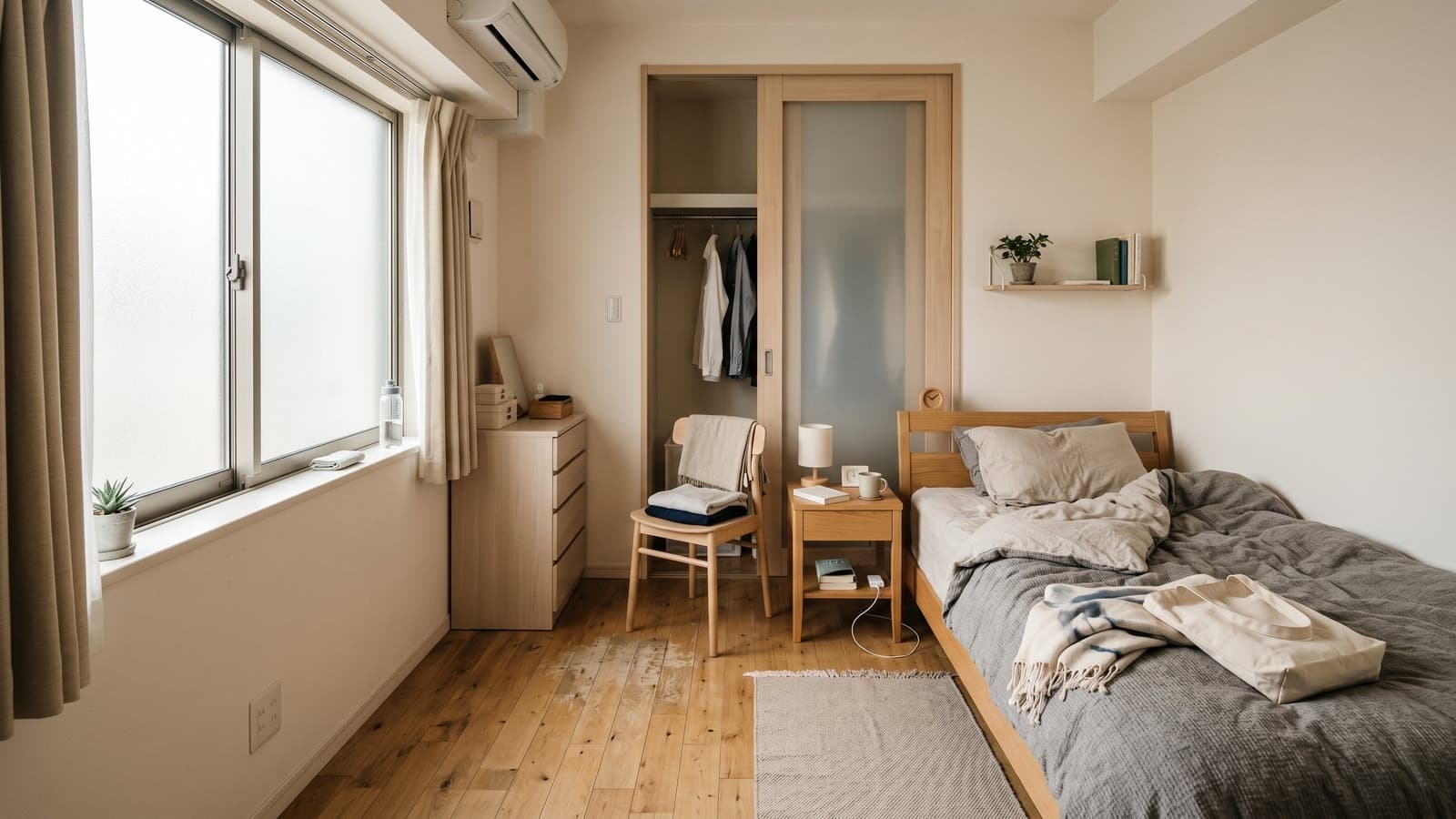
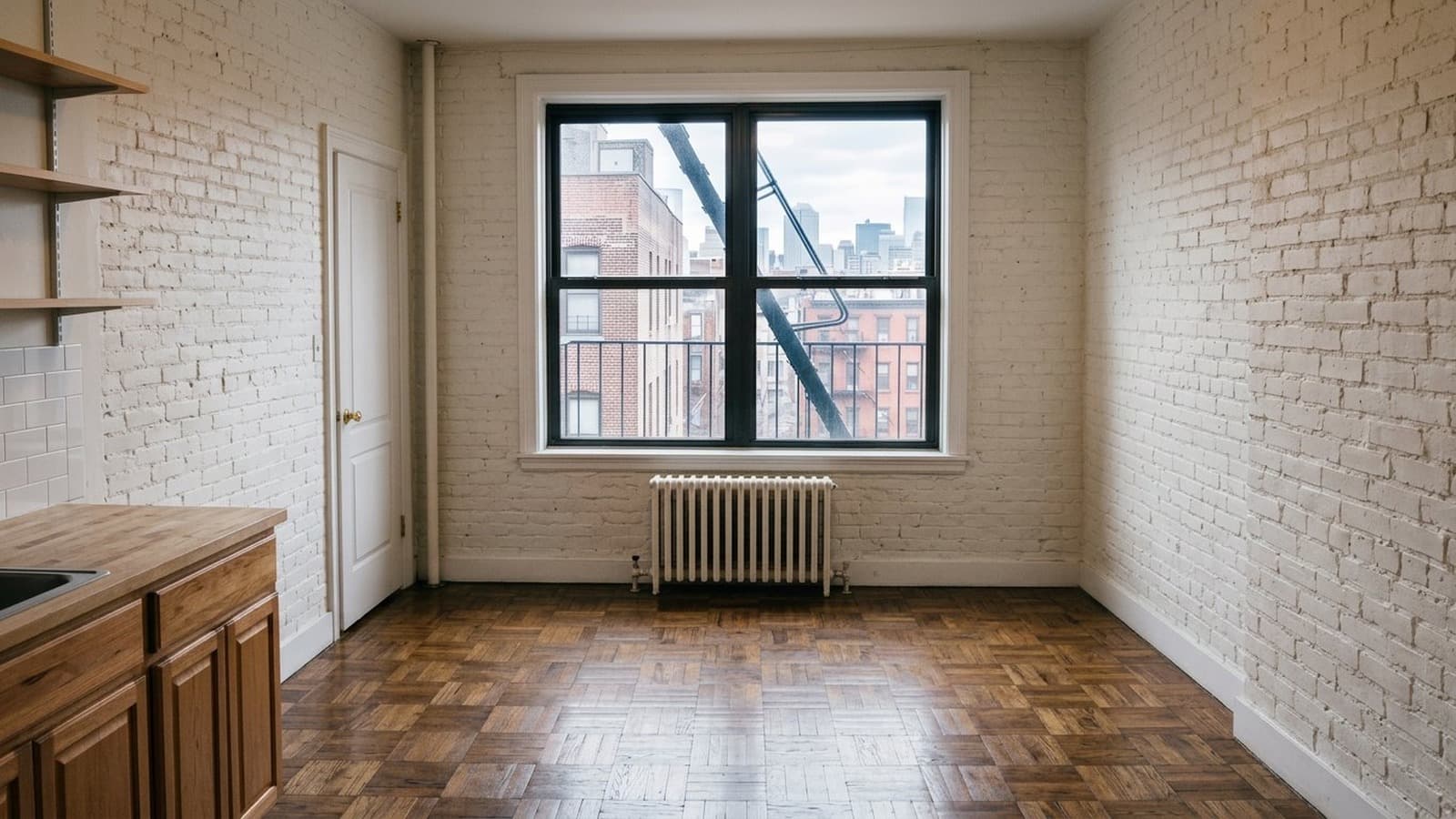
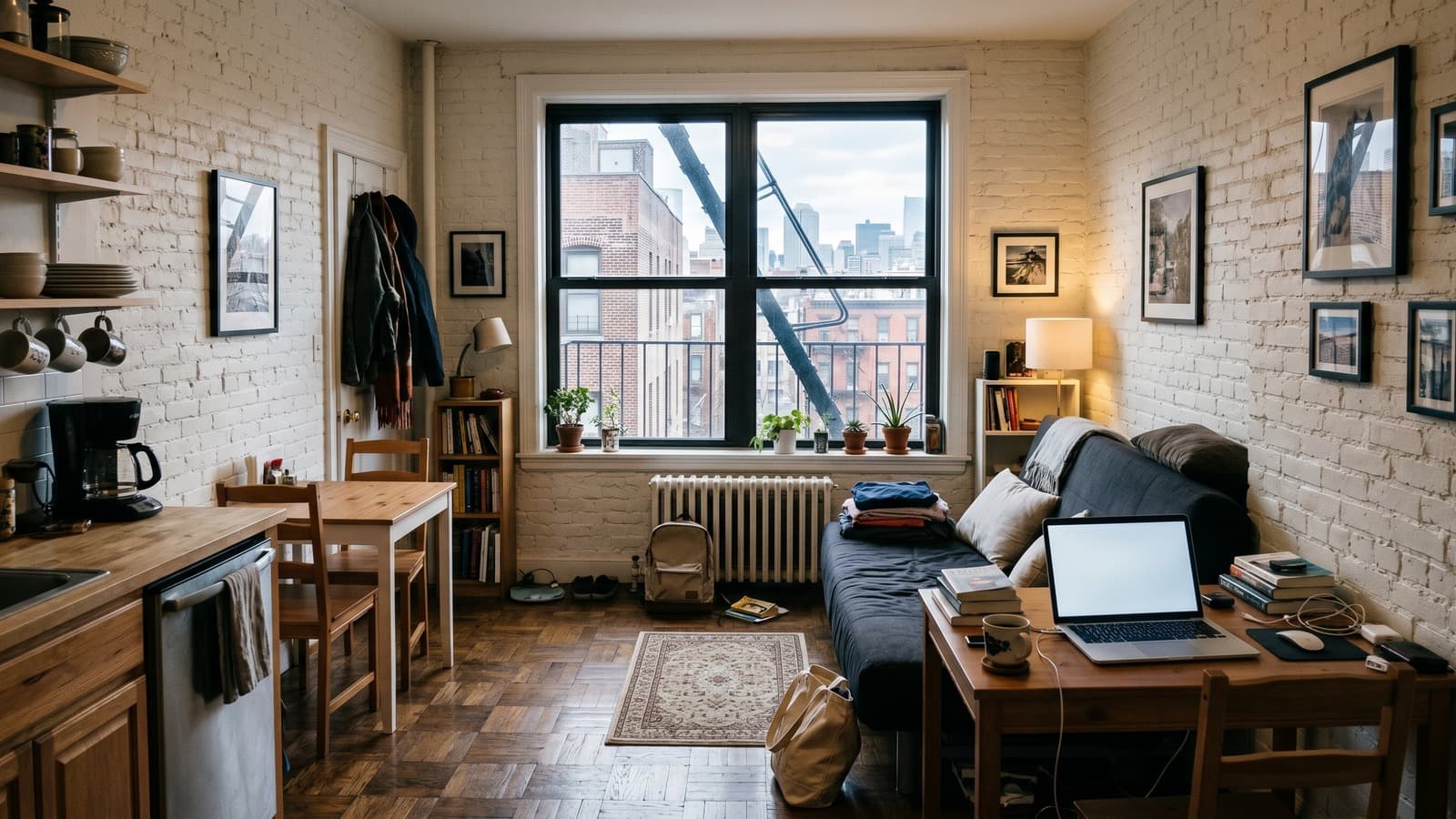
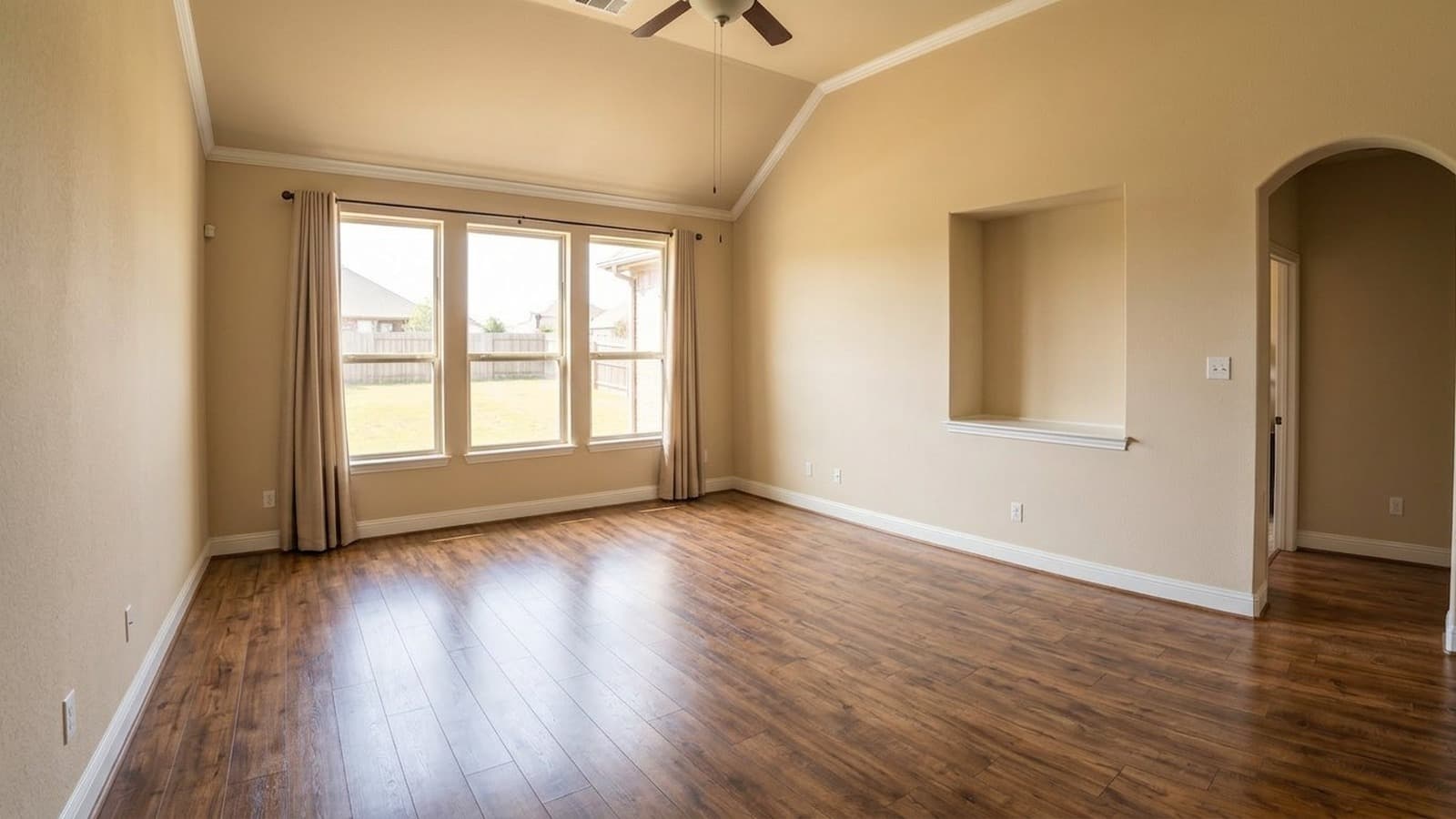
Japanese apartment bedroom: furniture and personal belongings removed so the room is ready for virtual staging or listing.
Keep the property details accurate
AI decluttering and virtual staging should make the listing photo easier to understand, not misleading. When you remove furniture or belongings, check that the fixed parts of the room are still accurate: flooring, walls, windows, doors, fixtures, built-ins, appliances, and room proportions.
Disclosure rules vary by MLS, portal, brokerage, and market. For a deeper walkthrough, read our virtual staging disclosure guide.
Prepare the next listing before the unit is vacant
Upload an occupied room photo, remove furniture and belongings, then stage the cleaned space for the next renter or buyer.
Clean Up and Stage a PhotoOccupied-home virtual staging FAQ
Can you virtually stage an occupied home?
Yes. The usual workflow is to remove existing furniture and belongings from the photo first, then virtually stage the cleaned room. This works best when the photo clearly shows the room's walls, windows, floors, and layout.
Is it okay to remove furniture from real estate photos?
It depends on your local rules and how the edited photo is used. In general, edits should not misrepresent fixed property details or hide material defects. For listing use, disclose digital editing or virtual staging where your MLS, brokerage, or portal requires it.
Should I show the original occupied photo?
Often, yes. Keeping the original available helps reviewers, clients, buyers, renters, and compliance teams understand what changed. Some MLS rules may require original or unstaged photos to be included.
Can virtual staging remove a tenant's furniture?
Yes. Movable furniture can often be removed digitally before a room is virtually staged. The edited image should still preserve the property's fixed features, and disclosure may be required depending on your MLS, brokerage, portal, or local rules.
Is furniture removal the same as hiding defects?
No. Removing movable furniture or personal belongings is different from removing damage, stains, cracks, missing fixtures, or other condition issues. Those should not be edited out for listing use.