3ds Max Virtual Staging: Professional Techniques and Alternatives for Real Estate
If you're searching for 3ds Max virtual staging tutorials, you're likely weighing whether this professional 3D software is the right choice for your real estate visualization needs. The short answer: 3ds Max delivers photorealistic results but requires significant time investment and technical skill. For many real estate professionals, faster alternatives now exist.
Table of Contents
- What Is Virtual Staging with 3ds Max?
- Why Use 3ds Max for Virtual Staging?
- Setting Up 3ds Max for Real Estate Visualization
- Core Workflow: Creating Staged Scenes
- Rendering Techniques for Photorealistic Results
- Advanced Features Worth Learning
- Time and Cost Considerations
- Alternatives to 3ds Max for Virtual Staging
What Is Virtual Staging with 3ds Max?
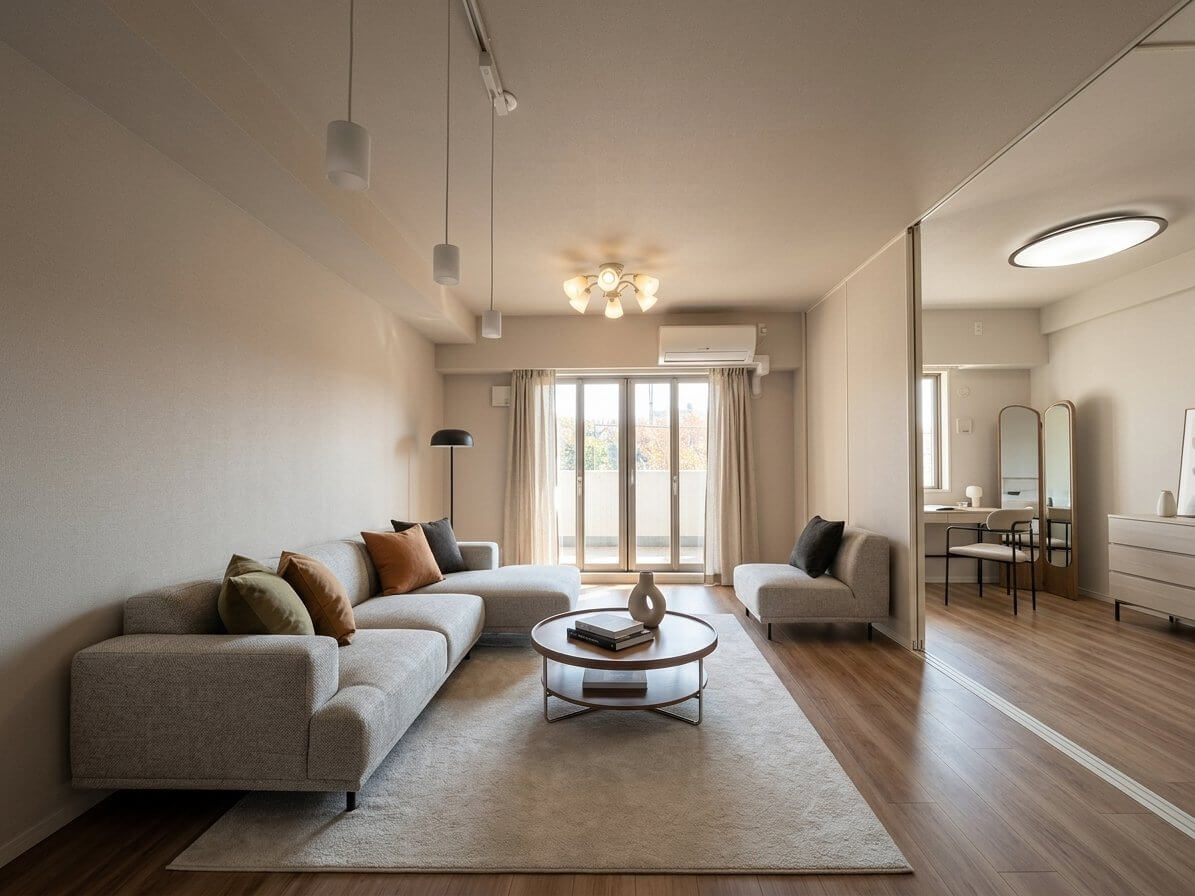
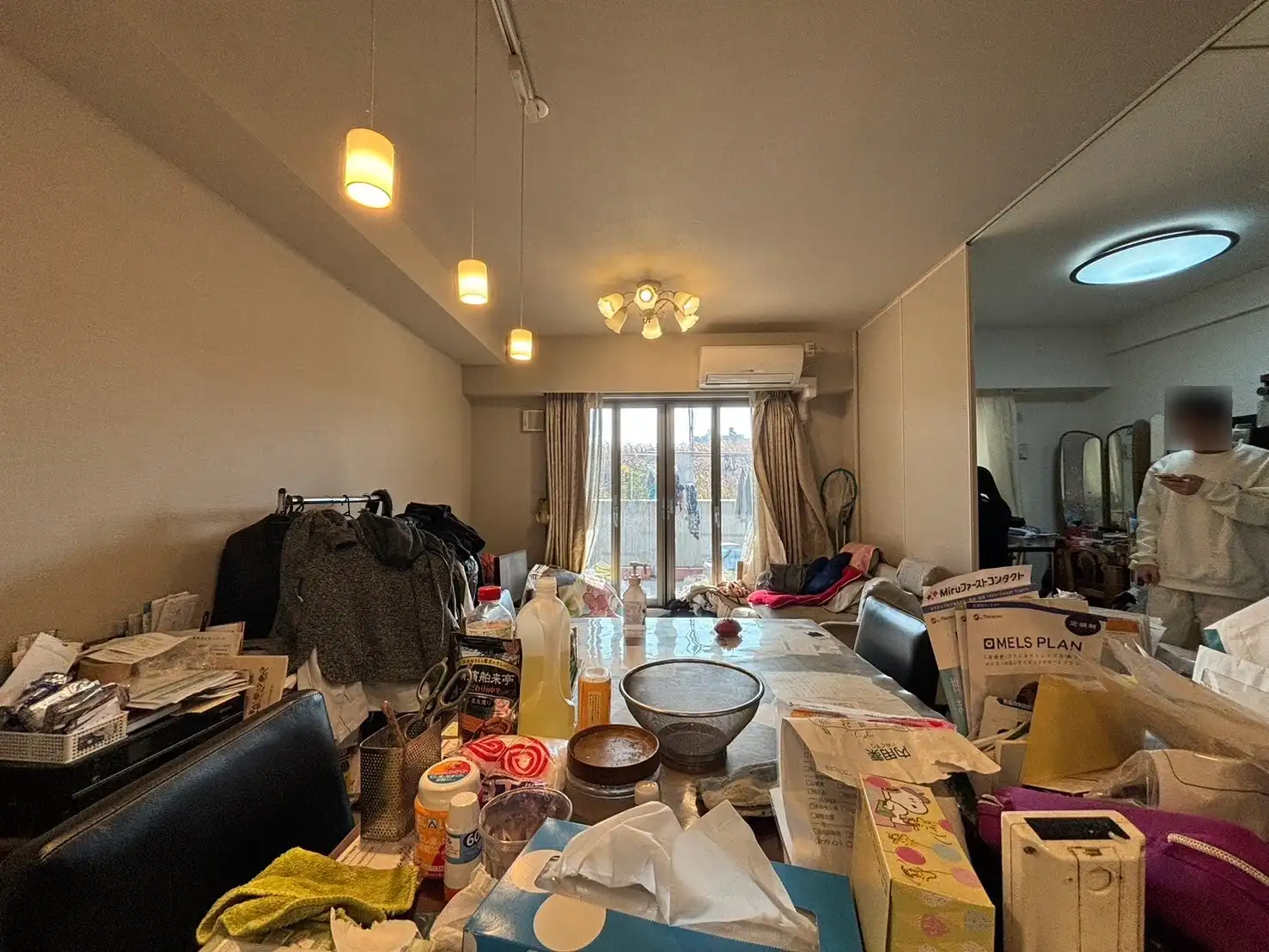
3ds Max virtual staging is the process of using Autodesk's 3ds Max software to digitally furnish and decorate empty property photos or create full 3D architectural visualizations. Unlike basic photo editing, 3ds Max allows you to build complete 3D scenes with accurate lighting, shadows, and perspectives.
The software is used primarily by architectural visualization studios, interior designers with technical backgrounds, and dedicated 3D artists—not typically by real estate agents directly.
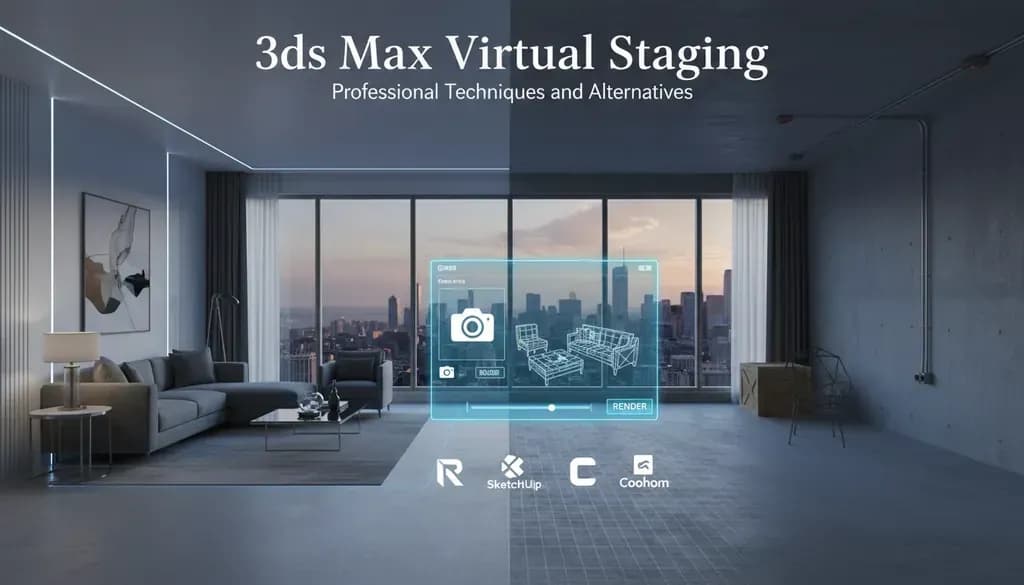
[Image: Split screen showing empty room photo on left and fully staged 3D visualization created in 3ds Max on right]
Why Use 3ds Max for Virtual Staging?
Unmatched Control and Quality
3ds Max gives you pixel-level control over every aspect of your visualization. You can adjust material properties, fine-tune lighting angles, and create custom furniture models. The quality ceiling is essentially unlimited if you have the skills.
According to Autodesk's own case studies, architectural visualization firms use 3ds Max to create renders that are often indistinguishable from photographs.
When 3ds Max Makes Sense
You should consider 3ds Max if you:
- Need to stage properties that don't exist yet (pre-construction developments)
- Require full 3D walkthroughs or 360-degree views
- Have complex architectural features that need accurate representation
- Already employ or work with professional 3D artists
- Need to create marketing materials beyond basic listing photos
The Learning Curve Reality
Here's what most tutorials won't tell you upfront: becoming proficient in 3ds Max for virtual staging takes months of dedicated practice. The interface is complex, the terminology is technical, and rendering alone can take hours per image.
If you're a realtor looking to stage five listings this month, 3ds Max isn't a practical solution unless you're outsourcing to a professional.
Setting Up 3ds Max for Real Estate Visualization
System Requirements and Installation
Before purchasing 3ds Max, verify your computer can handle it. According to Autodesk's technical specifications, you need at minimum:
- Windows 10/11 (64-bit)
- 4+ GB RAM (8-16 GB recommended for staging work)
- GPU with at least 4GB VRAM
- 9 GB free disk space
3ds Max costs $235/month or $1,875/year for a subscription. There's no perpetual license option anymore.
Essential Plugins for Virtual Staging
Out of the box, 3ds Max requires additional tools for efficient staging work:
V-Ray or Corona Renderer: The built-in scanline renderer won't give you photorealistic results. V-Ray costs an additional $470/year, while Corona is $444/year.
Furniture Libraries: You'll need pre-made 3D furniture models. Sites like TurboSquid, CGTrader, and Evermotion offer both free and paid models ranging from $5 to $100+ per item.
Interface Basics for Beginners
The 3ds Max workspace centers around four viewports: Top, Front, Left, and Perspective. Most staging work happens in the Perspective viewport, while the orthographic views help with precise positioning.
Key panels you'll use constantly:
- Command Panel: Where you create and modify objects
- Material Editor: For applying textures and finishes
- Render Setup: Configure output quality and settings
Set your units to architectural (feet/inches) under Customize > Units Setup before starting any project.
[Image: Annotated screenshot of 3ds Max interface highlighting the key panels used in staging workflow]
Core Workflow: Creating Staged Scenes
Starting from a Property Photo
The most common real estate staging workflow uses a photo as a background reference:
- Import your empty room photo into the Perspective viewport as a background image
- Match the camera focal length and angle to align with the photo perspective
- Model basic room geometry (walls, floor, ceiling) to match the photo
- Place furniture models, scaling and positioning to match the perspective
- Apply materials and lighting to blend 3D elements with the photo
This hybrid approach is faster than building everything from scratch and grounds your staging in the actual property.
Importing and Placing Furniture
When importing 3D furniture models (typically .FBX or .OBJ format), pay attention to scale. A common beginner mistake is importing a sofa that's dimensionally sized for doll houses or giants.
Use the Tape Measure tool to verify furniture dimensions match real-world sizes. A standard sofa should be 72-96 inches wide, for reference.
Group related items (e.g., "Living Room Seating" or "Dining Set") using the Group menu. This makes repositioning and hiding elements much easier as your scene grows complex.
Applying Realistic Materials
The Material Editor (press M to open it) is where you define how surfaces look. For realistic staging:
- Use Physical Materials with V-Ray or Corona, not legacy materials
- Apply high-resolution textures (at least 2K for floors and walls)
- Adjust Roughness values—perfect mirrors don't exist in real rooms
- Add subtle Bump or Normal maps to prevent surfaces from looking too flat
Fabric materials (sofas, curtains) should have slight texture variation. Wood floors should show grain direction and subtle color variation.
Lighting Fundamentals
Lighting makes or breaks realism in virtual staging. The goal is to match the existing light in your reference photo.
Natural Light Setup: Place a V-Ray or Corona Sun outside windows at an angle matching your photo's shadows. Add a V-Ray/Corona Sky for ambient fill light.
Interior Lights: Add light fixtures (lamps, recessed lights) as actual light-emitting objects with realistic intensity values measured in lumens, not arbitrary numbers.
HDRI Environments: Using an HDRI map provides automatic realistic lighting and reflections. Websites like HDRI Haven offer free high-quality HDRIs suitable for interior scenes.
Avoid over-lighting. Real rooms have shadows and variation—too much fill light creates an uncanny, artificial look.
Rendering Techniques for Photorealistic Results
Render Engine Settings
Whether using V-Ray or Corona, start with these baseline settings:
- Resolution: Match your source photo (typically 3000-4000px wide for listing photos)
- Anti-aliasing: Medium-high quality (balance between render time and noise)
- Global Illumination: Enabled with 2-3 bounces
- Denoising: Use built-in denoisers to reduce render time
A single high-quality render can take 20 minutes to 2 hours depending on scene complexity and computer power.
Render Elements for Post-Processing
Professional workflows render separate passes:
- Beauty pass: The main full-color render
- Reflection pass: Isolated reflections for intensity control
- Ambient Occlusion: Adds depth and contact shadows
- Z-Depth: For depth-of-field effects in Photoshop
This gives you flexibility to adjust the final image in Photoshop without re-rendering everything.
Post-Production Integration
No 3ds Max render goes straight to a listing. Final images always need post-processing:
- Color correction to match the property photo's color grade
- Depth-of-field blur to draw focus to key areas
- Adding window views if rendered with transparency
- Subtle vignetting and contrast adjustments
Budget 15-30 minutes of Photoshop work per rendered image.
[Image: Before/after comparison showing raw 3ds Max render and final post-processed image]
Advanced Features Worth Learning
Camera Matching for Perfect Integration
The Camera Match utility in 3ds Max (under Utilities panel) lets you align a 3D camera perfectly with a photograph by marking vanishing point lines. This is crucial for seamlessly blending 3D furniture with real room photos.
Once calibrated, your 3D furniture will automatically match the perspective distortion of the photo.
Creating Custom Materials
As you advance, you'll want to create custom materials beyond downloaded presets. The key is using PBR (Physically Based Rendering) workflows:
- Start with reference photos of real materials
- Build materials using Base Color, Roughness, and Normal maps
- Test materials under different lighting conditions
- Save custom materials to a library for reuse
Animation for Walkthroughs
For high-end listings, animated walkthroughs showcase entire properties. The process:
- Create a Camera Path using spline tools
- Animate the camera along the path over 5-10 seconds (150-300 frames)
- Render as an image sequence
- Compile frames into video using Media Encoder or similar
Fair warning: rendering 300 frames at high quality could take 24-48 hours of computer time.
Time and Cost Considerations
The Real Time Investment
Let's be honest about timelines for creating one staged room in 3ds Max:
- Scene setup and camera matching: 30-60 minutes
- Importing and arranging furniture: 1-2 hours
- Material application and adjustment: 1-2 hours
- Lighting setup and testing: 1-2 hours
- Rendering: 30 minutes to 2 hours
- Post-production: 20-30 minutes
Total: 4-8 hours per room for someone with intermediate skills. Beginners should double that estimate.
For a typical 3-bedroom listing needing 5 staged photos, you're looking at 20-40 hours of work.
Professional Service Costs
If you outsource to a 3D visualization studio, expect to pay:
- $150-400 per image for basic staging work
- $500-1,000+ per image for complex architectural renders
- $2,000-5,000 for full property walkthroughs
Compare this to traditional physical staging at $2,000-5,000 per property, but remember the turnaround time for 3ds Max work is typically 5-10 business days.
[Image: Cost comparison infographic showing physical staging vs 3ds Max professional services vs AI staging]
Alternatives to 3ds Max for Virtual Staging
AI-Powered Virtual Staging
The real estate industry has shifted dramatically toward AI virtual staging services that require zero 3D modeling knowledge. These tools analyze empty room photos and automatically add furniture in seconds.
How it works: Upload an empty room photo, select a style (modern, traditional, minimalist), and the AI generates a staged version in 30-60 seconds.
Pricing: Services like VirtualStaging.art charge around $5 per photo, versus hundreds for 3ds Max professional work.
Quality trade-offs: AI staging works best for standard rectangular rooms with clear walls and floors. Complex angles, unusual architecture, or highly specific design requirements still benefit from manual 3D work.
Turnaround: Immediate results versus days or weeks with 3ds Max workflows.
For most realtors staging standard residential listings, AI tools have become the practical choice. Reserve 3ds Max for special cases requiring custom work.
SketchUp + Enscape
SketchUp offers a gentler learning curve than 3ds Max while still providing 3D modeling capabilities. Paired with the Enscape rendering plugin, you can create decent staged visualizations in a fraction of the learning time.
Advantages: More intuitive interface, lower cost ($380/year for SketchUp Pro + Enscape), faster rendering.
Disadvantages: Lower quality ceiling than 3ds Max, fewer advanced features, smaller asset libraries.
Photoshop-Based Manual Staging
Experienced photo editors can stage rooms using virtual staging with Photoshop by cutting and pasting furniture from stock photos, then adjusting perspective, shadows, and lighting.
Best for: Small-scale operations, photographers with strong Photoshop skills, tight budgets.
Limitations: Time-intensive, requires extensive image libraries, difficult to maintain perspective accuracy.
When to Use Each Approach
Choose 3ds Max if: You're staging pre-construction properties, need full 3D walkthroughs, require complete design flexibility, or already have in-house 3D artists.
Choose AI staging if: You're staging existing vacant properties with standard layouts, need quick turnarounds, manage high volumes of listings, or lack 3D modeling experience.
Choose SketchUp if: You want some 3D capability without the 3ds Max learning curve, occasionally need custom elements, and prefer one-time software learning.
Choose Photoshop if: You already have strong photo editing skills, stage infrequently, and want complete control without subscription costs.
Getting Started with Your Staging Strategy
3ds Max virtual staging represents the high end of real estate visualization—offering unmatched quality and flexibility for those willing to invest the time and money to master it. For architectural firms, developers, and luxury property marketers, it remains the gold standard.
But for most real estate professionals who need to stage multiple listings quickly and affordably, modern AI-powered virtual staging tools deliver 90% of the visual impact at 5% of the cost and time investment.
The question isn't which tool is "better"—it's which tool matches your specific needs, skills, timeline, and budget. Start by evaluating how many properties you stage monthly, your technical comfort level, and whether you're marketing existing homes or future developments.
Whichever path you choose, virtual staging in any form delivers significantly better results than empty room photos. According to the National Association of Realtors, 82% of buyers' agents say staging makes it easier for buyers to visualize a property as their future home.