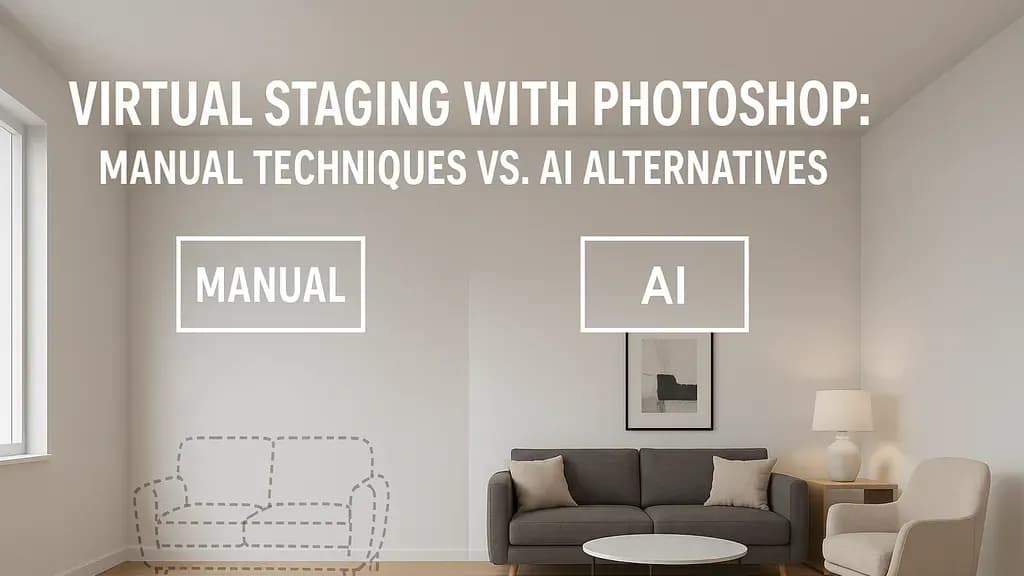
What Is Virtual Staging with Photoshop?
Virtual staging with Photoshop involves manually adding furniture and décor to empty room photographs using Adobe's image editing software. Unlike automated solutions, you're sourcing furniture images, cutting them out, adjusting their perspective to match the room, and hand-painting shadows and reflections.
The process gives you complete creative control but requires significant Photoshop expertise and time investment. Most professionals spend hours finding high-quality furniture photos shot from the right perspective, then manually integrate them by drawing all lights and shadows by hand.
Understanding the Reality: Manual vs. AI Staging
Before diving into the manual process, understand what you're signing up for. Adobe Photoshop works best for post-editing purposes rather than serving as the primary software for creating virtual staging itself. The main limitation: Photoshop is a 2D photo editor, not a 3D rendering program.
Time investment: Professional virtual staging typically takes 48-72 hours to complete, though some services deliver within 8-24 hours. Manual Photoshop work by someone learning the process can take 4-8 hours per room.
Cost comparison:
- Manual virtual staging services: $19-75 per photo (median price of $29 per photo)
- AI virtual staging: $1 per render PAYG, down to 50c per render on subscriptions
- Traditional physical staging: $2,000-3,500 per property plus $500-1,500/month rental
Quality challenges: In 2D software like Photoshop, there's no way to adjust the horizon line automatically. You must choose furniture pictures taken from an angle that corresponds with the original photo, and even small deviations make the room look fake.
That said, Photoshop skills are valuable for touch-ups, combining with 3D renders, or custom projects where you need pixel-level control.
Preparing Room Photos for Virtual Staging
The quality of your staging depends entirely on your source photo. Poor photography makes even expert Photoshop work look unconvincing.
Photo Requirements
Use high-resolution images—at least 24MP is ideal. If possible, take photos in RAW format to preserve image quality. Shoot from eye level (about 5 feet high) to minimize distortion.
Camera settings:
- Use a wide-angle lens (16-24mm) to capture the full room
- Keep ISO low to avoid noise
- Shoot in natural light when possible, or use consistent artificial lighting
- Enable a grid overlay to keep vertical lines straight
Cleaning Up the Image
Before adding furniture, remove distractions:
- Remove clutter: Use the Spot Healing Brush (J) or Clone Stamp Tool (S) to remove visible outlets, cords, or marks
- Correct perspective distortion: Go to Filter > Lens Correction, enable the Auto tab, and select your camera profile. Manually adjust vertical and horizontal sliders if needed
- Adjust brightness and color: Use Levels (Ctrl/Cmd + L) or Curves (Ctrl/Cmd + M) to balance exposure. Ensure walls are neutral—overly warm or cool tones make furniture harder to blend
Finding and Extracting Furniture Assets
This is where manual Photoshop staging becomes genuinely difficult. You have to search the internet for high-quality photos of furniture and décor shot from the right perspective.
Where to Find Furniture Images
Stock photo sites:
- Unsplash (free, high-resolution)
- Adobe Stock (subscription required, filtered by perspective)
- Pexels (free)
- 3D model sites like TurboSquid (if you can render them)
The perspective problem: Finding a sofa photographed at exactly the same angle as your room is nearly impossible. You'll often settle for "close enough," which is why manual Photoshop staging often looks slightly off.
Extracting Furniture from Backgrounds
- Select the furniture: Use the Quick Selection Tool (W) or Pen Tool (P) for precise edges. For the Pen Tool, trace the furniture outline, right-click, and choose "Make Selection"
- Refine the edge: Go to Select > Select and Mask. Adjust the Edge Detection radius and use the Refine Edge Brush on soft elements like cushions
- Create a layer mask: Click the mask icon at the bottom of the Layers panel
- Save as a Smart Object: Right-click the layer and choose Convert to Smart Object. This lets you resize without quality loss
Create a library of extracted furniture organized by category (sofas, chairs, tables) to speed up future projects.
Matching Perspective: The Critical Challenge
This is where most DIY Photoshop staging fails. Furniture that doesn't match the room's perspective looks pasted on—like a bad collage.
Finding the Vanishing Point
Rooms follow one-point or two-point perspective. You need to take into account the horizon line while setting up cameras. Only by finding the accurate camera angle can furniture render from the same perspective as the original room.
Manual method:
- Create a new layer and use the Line Tool (U)
- Draw lines along edges in your room that should be parallel (floor boards, ceiling edges, window frames)
- Where these lines converge is your vanishing point—usually at eye level
- Your furniture must align to this same vanishing point
Using Perspective Warp Tool
Photoshop's Perspective Warp tool helps adjust furniture to match room perspective, as detailed in Adobe's Perspective Warp documentation:
- Place your furniture layer in the approximate position
- Go to Edit > Perspective Warp
- Draw quads along the flat surfaces of your furniture image. Keep the edges of the quads parallel to the straight lines for accurate results
- Switch to Warp mode (press W)
- Use the Perspective Warp tools to make sure that if you extended the lines of your object, they would also converge at the horizon line
- Press Enter to commit changes
This tool has a learning curve. Expect to spend 15-30 minutes per furniture piece when starting out.
Reality check: In 3D staging software, all objects placed in a room automatically inherit the right perspective and proportions, with cameras set up precisely to match the horizon line on the original photo. This is Photoshop's biggest weakness.
Placing and Blending Furniture in Photoshop
Once perspective is matched, position and blend the furniture naturally.
Strategic Placement
Staging principles:
- Leave 30-36 inches for walkways between furniture
- Create conversation areas with seating facing each other
- Don't block windows or architectural features
- Layer furniture—foreground, middle ground, background—to create depth
Scaling furniture correctly:
- Use room dimensions as reference. If you know the room is 12x15 feet, a standard sofa should be roughly 7-8 feet (proportional in the photo)
- Press Ctrl/Cmd + T for Free Transform, hold Shift while dragging corners to scale proportionally
- Common mistake: furniture too large for the space (Furniture looks like a piece glued to a basic collage)
Blending Techniques
Color matching:
- Create a Hue/Saturation adjustment layer (Ctrl/Cmd + U) clipped to your furniture layer (Alt/Option + click between layers)
- Adjust until furniture color temperature matches the room lighting
- Use Color Balance (Image > Adjustments > Color Balance) to add warm tones if the room has warm lighting
Softening edges: Add a 1-2 pixel Gaussian blur to soften furniture so it looks like a photo rather than a crystal-clear AI-generated image. Adjust shadow, saturation, and contrast to match your photo.
Filter > Blur > Gaussian Blur, set to 0.5-2 pixels depending on image resolution.
Adding Realistic Shadows and Lighting
Shadows sell the illusion. Without them, furniture floats.
Creating Cast Shadows
- Duplicate your furniture layer and place it below the original
- Fill with black: Press D to reset colors, then Shift + Delete and choose Black, 100% opacity
- Transform the shadow: Press Ctrl/Cmd + T, right-click, choose Distort or Perspective. Drag the shadow to match the room's light direction
- Blur the shadow: Filter > Blur > Gaussian Blur (15-40 pixels depending on distance from furniture)
- Reduce opacity: Set shadow layer to 20-40% opacity
- Add a gradient: Use a layer mask with the Gradient Tool (G) to fade shadows further from the object
Matching Light Direction
Analyze your room photo:
- Where are windows? Light comes from that direction
- Observe existing shadows on walls or fixtures
- Add realistic lighting and shadows for a cohesive look, ensuring elements are properly resized and positioned
Advanced technique: Create multiple shadow layers at different opacities for furniture with complex forms (like chair legs casting separate shadows).
Common Mistakes That Make Staging Look Fake
Issues with lighting, shadows and reflections, texture, scale and proportions, or the use of low-quality furniture models and rendering software are the main culprits.
Top mistakes:
- Wrong perspective: Virtual staging can look fake if produced with wrong 3D models, bad lighting, out of scale, misaligned perspective, and desaturated colors
- Floating furniture: Furniture appears to be floating when there's no shadow or visible connection between the object and the floor, creating an unrealistic visual effect
- Inconsistent lighting: Furniture brighter or darker than the room looks pasted in. Always match the room's exposure
- Over-sharpening: Furniture edges too crisp compared to the slightly soft room photo
- Ignoring reflections: When removing objects, you must erase their reflections from all glass and mirrors, as well as retouch their shadows
- Scale errors: A king bed that looks queen-sized, or a coffee table taller than the sofa
Critique your work by flipping the image horizontally (Image > Image Rotation > Flip Canvas Horizontal). Fresh perspective reveals errors.
When to Use Photoshop vs. AI Virtual Staging
Photoshop manual staging made sense in 2010. In 2024, the landscape has changed dramatically.
Choose Manual Photoshop When:
- You need pixel-perfect custom work for a luxury property
- You're combining virtual staging with other Photoshop edits (sky replacement, extensive retouching)
- You already have 3D-rendered furniture and need final compositing
- You're editing only 1-2 photos and have advanced Photoshop skills
Choose AI Virtual Staging When:
- According to National Association of Realtors staging research, 41% of agents reported buyers were more likely to visit a home because of virtually staged images, and staged homes spend 73% less time on the market on average
- You're staging multiple listings (4+ photos per property)
- Turnaround time matters—AI delivers results in minutes vs. days
- Cost is a factor—AI staging costs 90-95% less than manual services
- You want consistent quality without perspective-matching expertise
The hybrid approach: Many professionals use AI-powered virtual staging tools to generate the bulk of their staged images, then use Photoshop for minor refinements—adjusting a color, removing an artifact, or adding a custom element.
For real estate agents handling multiple listings per month, AI virtual staging services like VirtualStaging.art deliver photorealistic results at $1 per render. Staged homes sell 73% faster than unstaged homes, cutting market time by 40-60% from 52 days to about 29-31 days. At that ROI, spending 6 hours manually staging one room in Photoshop rarely makes business sense.
Photoshop's Role in Modern Workflows
Even with AI staging available, Photoshop remains valuable for:
- Pre-processing photos (perspective correction, color balance)
- Post-processing AI results (fine-tuning shadows, removing occasional AI artifacts)
- Creating marketing collateral with staged images
- Custom renovations or additions AI can't handle
Photoshop has added generative AI options for creating images within Photoshop. Using text-based prompts, you can create and add different types of furniture without finding PNG images or purchasing stock images. This Generative Fill feature (available in Photoshop Beta) bridges manual and AI approaches.
Bottom line: Learning manual virtual staging in Photoshop builds valuable image editing skills. You'll understand perspective, lighting, and composition at a deep level. But for producing staged listings at scale, AI staging has become the practical choice for most real estate professionals.
If you're staging more than a few photos per month, try an AI virtual staging service and reserve Photoshop for the refinements that matter.