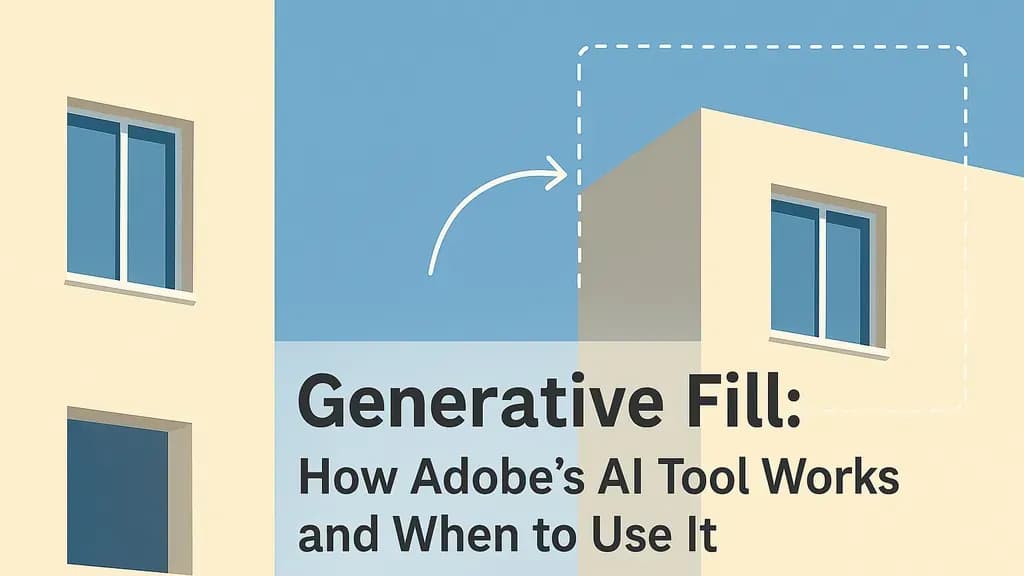
Generative Fill is Adobe's AI-powered tool that lets you add, remove, or extend content in images using simple text prompts. Since its launch in Photoshop in 2023, it's become one of the most practical applications of AI in creative work—especially for photographers, designers, and real estate professionals who need quick image edits without advanced Photoshop skills.
What is Generative Fill?
Generative Fill is an AI feature in Adobe Photoshop and Firefly that automatically generates image content based on text descriptions. You select an area of an image, type what you want to appear there, and the AI creates multiple options that blend seamlessly with the existing photo.
Adobe introduced Generative Fill in May 2023 as part of Photoshop's integration with Adobe Firefly, their family of generative AI models. Unlike earlier content-aware fill tools that could only clone existing content, Generative Fill can create entirely new objects, textures, and scenes.
The tool works in three main ways:
- Adding content: Generate new objects or elements in empty spaces
- Removing content: Delete unwanted objects and fill the space naturally
- Extending images: Expand canvas boundaries with AI-generated content that matches the original image
How Generative Fill Works
Generative Fill uses a diffusion-based AI model trained on Adobe Stock images, openly licensed content, and public domain materials. When you make a selection and enter a prompt, the model analyzes the surrounding context—lighting, perspective, style, and colors—then generates content that fits naturally.
The technology is similar to other AI image generators like DALL-E or Midjourney, but optimized for editing existing photos rather than creating images from scratch. Adobe's model was specifically designed to avoid generating content based on copyrighted material, trademarked designs, or recognizable public figures, making it safer for commercial use than some alternatives.
Each prompt generates three variations by default. You can cycle through these options and regenerate if none fit your needs. The AI works best with specific, descriptive prompts—"wooden park bench with iron armrests" performs better than just "bench."
Practical Uses for Generative Fill
While Generative Fill gets attention for dramatic transformations, its most valuable applications are practical editing tasks that used to require significant manual work.
Removing Unwanted Objects
This is the most common use case. You can remove power lines, tourists, or clutter from photos by selecting the object and leaving the prompt blank—Generative Fill will automatically fill the space with appropriate background content.
Extending Image Boundaries
When you need a different aspect ratio or more space around your subject, you can expand the canvas and use Generative Fill to extend the background. This is particularly useful for social media images that need to fit specific dimensions.
Product Photography Cleanup
E-commerce sellers use Generative Fill to remove backgrounds, fix lighting inconsistencies, or add simple props to product shots. It's faster than traditional compositing techniques.
Real Estate Image Enhancement
Photographers use it to remove construction equipment, utility boxes, or vehicles from property exteriors. For interiors, it can clean up clutter or fix small imperfections—though for more substantial room transformations, dedicated AI virtual staging tools are more effective.
How to Use Generative Fill in Photoshop
Generative Fill requires Photoshop version 24.6 or later. Here's the basic workflow:
Step 1: Make a Selection
Use any selection tool (Lasso, Object Selection, Rectangle Marquee) to define the area you want to modify. For removing objects, select the object itself. For adding content, select the empty area where you want new content.
Step 2: Access Generative Fill
Once you've made a selection, a Generative Fill toolbar appears in the context taskbar. Alternatively, go to Edit > Generative Fill.
Step 3: Enter Your Prompt
Type a description of what you want to generate, or leave it blank to remove selected content. Be specific about materials, colors, and style when adding objects.
Step 4: Review Options
Photoshop generates three variations on a new layer. Use the Properties panel to cycle through options. You can regenerate for more variations if needed.
Step 5: Refine if Necessary
Because Generative Fill creates new layers, you can adjust opacity, use layer masks, or combine multiple generations. You can also run Generative Fill multiple times on the same image for complex edits.
Generative Fill Best Practices
After testing Generative Fill extensively, here are the techniques that produce the most reliable results:
Be Specific with Prompts
Vague prompts like "tree" can generate anything from a pine sapling to an oak forest. Specify "mature maple tree with orange autumn leaves" for predictable results. Include details about:
- Materials (wooden, metal, fabric)
- Colors and finishes (matte black, glossy white)
- Style descriptors (modern, vintage, minimalist)
- Size relative to surroundings (small, large, tall)
Expand Selections Slightly Beyond Objects
When removing objects, select a bit of the surrounding area. This gives Generative Fill more context and creates smoother blending at the edges.
Work in Stages for Complex Edits
Don't try to generate everything in one prompt. Add or remove elements one at a time, regenerating until each piece looks right before moving to the next.
Use High-Resolution Source Images
Generative Fill works best on images with sufficient resolution—Adobe recommends at least 1024 pixels on the shortest side. Low-resolution images produce blurry or artifact-heavy results.
Check Lighting and Perspective
The AI usually matches lighting direction and intensity, but verify that shadows and highlights make sense. For objects with specific perspectives (furniture, buildings), the AI sometimes struggles with complex angles.
Keep Generations on Separate Layers
This is automatic, but don't flatten immediately. Keeping generations on separate layers lets you adjust opacity, mask portions, or revert changes without starting over.
Limitations and Alternatives
Generative Fill is powerful, but it has clear limitations you should understand before relying on it for professional work.
What Generative Fill Struggles With
- Faces and people: The tool intentionally limits generation of realistic human faces to prevent misuse
- Text and fine details: Generated text is usually illegible, and intricate patterns often look muddled
- Consistent style across multiple edits: Each generation can vary slightly in style, making it hard to maintain consistency across many edits
- Very large selections: Generating content for large areas (more than 50% of the image) often produces unrealistic results
Generative Fill Alternatives
For tasks where Generative Fill falls short, consider these alternatives:
For removing backgrounds: Remove.bg or Photoshop's Select Subject + Delete are faster and more accurate for simple background removal.
For room transformations: If you're working with real estate interiors, specialized tools designed for furniture placement and room staging produce more realistic results than general-purpose Generative Fill. AI-powered virtual staging services can transform empty rooms into furnished spaces in minutes, starting from 50c per photo. AI-powered virtual staging services can transform empty rooms into furnished spaces in minutes, starting from 50c per photo.
For creating variations: Photoshop's Neural Filters or standalone tools like Midjourney offer more control for generating multiple artistic variations.
For precise object removal: Traditional clone stamp and healing brush tools still outperform AI when you need pixel-perfect control.
Generative Fill for Real Estate
Real estate photographers and agents have found specific applications where Generative Fill saves considerable time:
Exterior Cleanup
Removing cars from driveways, trash bins from curbs, or construction materials from neighboring properties used to require tedious clone stamping. Generative Fill handles these tasks in seconds, though you should always verify that property lines and architectural details remain accurate.
Sky Replacement and Extension
When you need a more dramatic sky or additional vertical space in exterior shots, Generative Fill can extend the image upward and generate appropriate sky content. Results vary depending on weather conditions and time of day in the original photo.
Interior Touch-Ups
Small imperfections—scuff marks, outlet covers, minor wall damage—can be removed quickly. However, for more substantial interior changes like adding furniture to empty rooms or changing wall colors throughout a space, you'll get better results with AI virtual staging services that are specifically trained on interior design and furniture placement.
Virtual staging tools designed for real estate can furnish entire rooms, swap furniture styles, and maintain consistent lighting and perspective across multiple generations—capabilities that general-purpose Generative Fill wasn't built to handle. These specialized tools typically cost $5-25 per image, compared to traditional physical staging which runs $2,000-5,000+ per property.
When to Use Dedicated Staging Tools vs. Generative Fill
Use Generative Fill when you need to:
- Remove small objects or imperfections
- Extend image boundaries
- Clean up outdoor spaces
- Make minor repairs or adjustments
Use dedicated virtual staging when you need to:
- Furnish empty rooms completely
- Change room function or layout
- Generate multiple design styles for the same space
- Ensure furniture proportions and perspectives are architecturally accurate
Getting Started with Generative Fill
Generative Fill represents a practical application of AI that solves real workflow problems. It won't replace fundamental photo editing skills, but it can compress hours of manual work into minutes for the right tasks.
Start with simple edits—removing objects or extending backgrounds—before attempting complex generations. Pay attention to lighting, perspective, and context in your prompts. Keep your expectations realistic about what AI can generate convincingly.
For real estate professionals specifically, Generative Fill works well for exterior cleanup and minor interior touch-ups, but consider specialized staging tools when you need to furnish spaces or make substantial interior transformations. The combination of Photoshop's Generative Fill for general editing and purpose-built staging tools for room transformations gives you the most versatile toolkit for property marketing.
Remember that all AI-generated content should be reviewed for accuracy and appropriateness before publishing, especially in commercial contexts. The technology is impressive, but human judgment remains essential for professional-quality results.