Floor plans are one of the most powerful tools in real estate marketing. According to Zillow research, listings with floor plans receive 52% more views than those without them.
Whether you're a real estate agent preparing a listing, a property manager showcasing rentals, or a homeowner planning a renovation, knowing how to create and render professional floor plans can dramatically improve how you communicate spatial information.
Table of Contents
- What Is a Floor Plan?
- Why Floor Plans Matter in Real Estate
- How to Create a Basic Floor Plan
- How to Render Your Floor Plan
- Best Software for Floor Plan Creation and Rendering
- Tips for Professional-Looking Floor Plan Renders
- Maintaining and Updating Floor Plans
What Is a Floor Plan?
A floor plan is a scaled diagram that shows the layout of a space from a bird's-eye view. It displays room dimensions, wall positions, door and window locations, and the relationship between different areas.
Floor plans are drawn to scale, typically using ratios like 1/4 inch = 1 foot. This allows accurate measurements and helps viewers understand the true proportions of a space without visiting in person.
Why Floor Plans Matter in Real Estate
Floor plans solve a fundamental problem in property marketing: helping potential buyers or renters understand a space before they see it.
Photos show individual rooms beautifully, but they don't reveal how those rooms connect or how the overall layout flows. A floor plan fills that gap.
Key benefits:
- Pre-qualify buyers: People can eliminate properties that don't meet their needs without scheduling a showing
- Increase engagement: Listings with floor plans get significantly more clicks and saves
- Justify pricing: Clear spatial documentation helps buyers understand what they're paying for
- Aid visualization: Buyers can mentally place their furniture and imagine living in the space
I've found that floor plans are especially valuable for condos and apartments, where layout efficiency matters more than total square footage.
[Image: Side-by-side comparison showing a property listing without a floor plan versus one with a professional floor plan]
How to Create a Basic Floor Plan
Measuring the Space
Start with accurate measurements. You'll need:
- Laser measure or tape measure: Laser measures ($30-100) are faster and more accurate for most users
- Notebook or smartphone: Record measurements as you go
- Photos: Take reference photos of each wall to remember details later
Measure each room's length and width, then record:
- Door widths and swing direction
- Window positions and sizes
- Ceiling heights if they vary
- Built-in features (closets, cabinets, fireplace)
- Wall thickness (typically 4-6 inches for interior walls)
Choosing Your Creation Method
You have three main options:
1. Graph paper (manual): Best for simple spaces or if you enjoy hands-on work. Use architectural scale rulers for accuracy.
2. Floor plan software: Programs like RoomSketcher, Floorplanner, or Cedreo offer templates and automatic scaling. Most have free tiers for basic plans.
3. Professional services: Companies like iGUIDE or Matterport create floor plans from 3D scans. Cost ranges from $150-400 per property depending on size.
Drawing the Basic Layout
- Set your scale: 1/4 inch = 1 foot is standard for residential properties
- Draw exterior walls first: These define your overall footprint
- Add interior walls: Include accurate thickness
- Mark openings: Show doors with swing direction, windows with sill positions
- Label rooms: Include dimensions (e.g., "Master Bedroom 14' x 12'")
- Add fixed features: Stairs, built-ins, major appliances
The goal at this stage is accuracy, not aesthetics. You'll enhance the visual appeal during rendering.
[Image: Example of a basic measured floor plan with dimensions labeled]
How to Render Your Floor Plan
Rendering transforms a basic line drawing into a polished, easy-to-understand visual that looks professional in listings.
Understanding Floor Plan Rendering
Rendering adds:
- Color and texture: Wood floors, carpet, tile patterns
- Furniture: Helps viewers understand scale and potential layouts
- Shadows and depth: Makes the plan more readable
- Branding: Company logo, contact information, property address
Software Options for Rendering
For beginners:
- Floorplanner ($30/month): Drag-and-drop interface with built-in furniture library
- RoomSketcher ($49/month): Good balance of features and ease of use
- SmartDraw ($10/month): Simple templates, works in browser
For professionals:
- AutoCAD ($1,865/year): Industry standard with complete control
- SketchUp Pro ($299/year): 3D modeling with 2D floor plan output
- Chief Architect ($3,195 one-time): Comprehensive suite for residential design
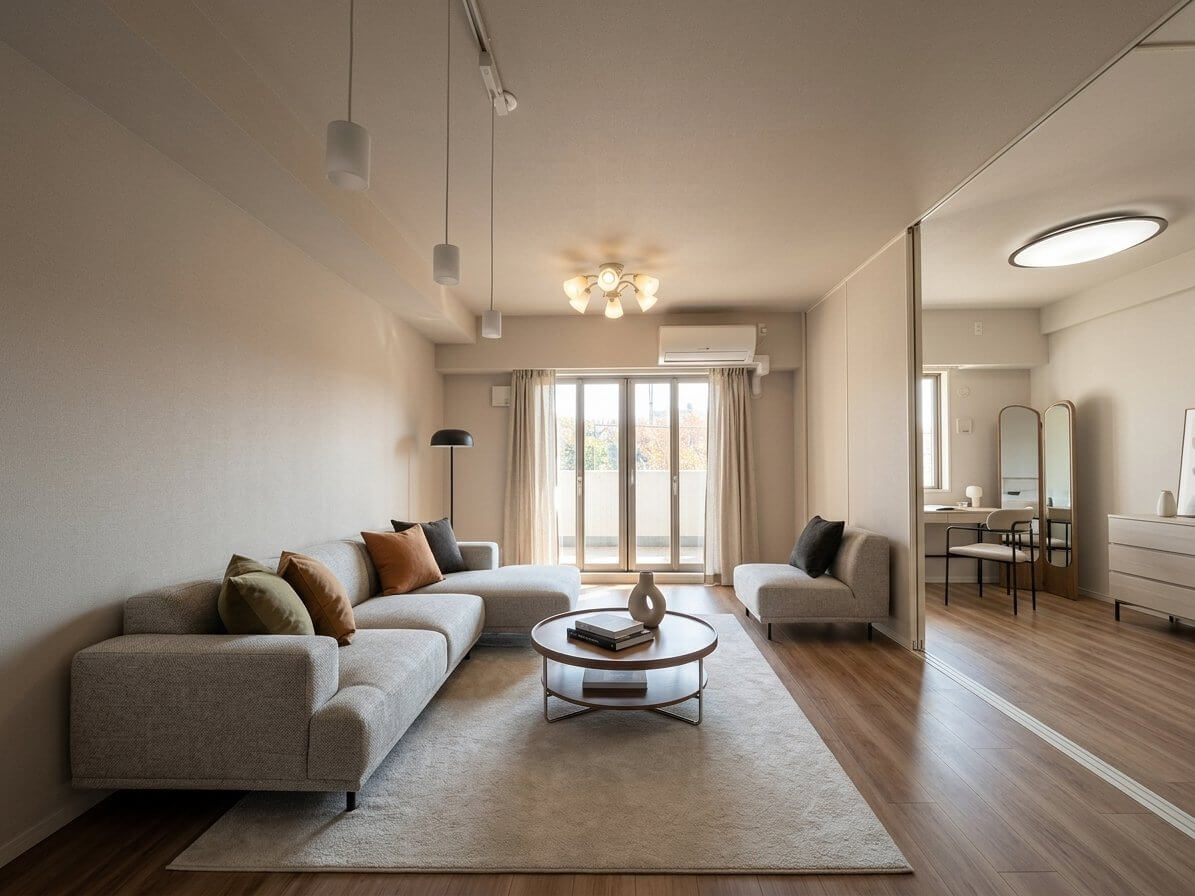
For quick AI solutions: If you already have photos of the space, AI-powered virtual staging tools can generate furnished room views that complement your floor plans, giving buyers both layout understanding and design inspiration from $5 per image.
Rendering Process Steps
- Import or recreate your basic floor plan in your chosen software
- Apply flooring textures: Use realistic materials (hardwood, tile, carpet)
- Add wall colors: Light neutrals work best for real estate marketing
- Insert furniture: Use appropriately scaled pieces that show function without overcrowding
- Adjust lighting: Add subtle shadows to create depth
- Include labels: Room names, dimensions, total square footage
- Export at high resolution: Minimum 300 DPI for print, 1920px wide for web
[Image: Before and after showing a basic line floor plan and the final rendered version with colors and furniture]
Best Software for Floor Plan Creation and Rendering
Based on use case and budget:
Best Free Option: Floorplanner Free Tier
Limited to one active project, but fully functional for occasional users.
Best for Real Estate Agents: RoomSketcher
Purpose-built for property marketing with 2D/3D output, virtual tours, and MLS-ready exports.
Best for Architects: AutoCAD or Revit
Complete precision and professional documentation standards.
Best for Speed: Magicplan
Mobile app that creates floor plans using your phone's camera. Scan a room in minutes. Plans start at $10.
Best Value for Small Teams: SketchUp Pro
One-time annual fee, powerful 3D modeling, extensive plugin library.
Tips for Professional-Looking Floor Plan Renders
Color and Texture Strategy
Keep it simple: Too many colors distract from the layout. Stick to:
- Light wood tones for hardwood areas
- Neutral beige/gray for carpet
- White or light gray for tile
- Subtle color variation between rooms for clarity
Use contrast wisely: Darker walls help define boundaries, but keep them subtle. The floor plan should be easy to read at a glance.
Furniture Placement
Furniture serves three purposes:
- Scale reference: Helps viewers understand room size
- Function clarity: Shows how each space can be used
- Flow visualization: Demonstrates traffic patterns
Best practices:
- Include bed sizes (queen/king) in bedrooms
- Show dining tables with chair count
- Place sofas away from walls to show spaciousness
- Leave clear walkways (minimum 3 feet)
- Don't overcrowd—less is more
Typography and Labels
Use clean, professional fonts:
- Room labels: 14-16pt, bold
- Dimensions: 10-12pt, regular weight
- Notes: 8-10pt
Include:
- Total square footage prominently displayed
- Individual room dimensions
- Compass rose showing orientation
- Scale indicator
Output Format
For online listings: JPG or PNG, 1920-2400px wide, optimized to under 500KB
For print materials: PDF or high-res PNG at 300 DPI
For interactive presentations: Some software exports HTML5 or embeddable viewers
[Image: Example of a professionally rendered floor plan with proper labeling, furniture, and branding]
Maintaining and Updating Floor Plans
When to Update
Floor plans need revision when:
- Pre-listing renovations: New kitchen, bathroom remodels, additions
- Layout changes: Walls removed, rooms converted (bedroom to office)
- Long-term listings: If a property sits for months, verify accuracy before relisting
- Seasonal rentals: Different furniture layouts for different tenants
Version Control
Save dated versions of your floor plan files: `` 123-Main-St_FloorPlan_2026-01-15.pdf 123-Main-St_FloorPlan_2026-03-20.pdf ``
This creates a record of changes and allows you to revert if needed.
Archiving for Future Use
Store floor plans in a central location organized by:
- Property address
- Client name
- Date created
Cloud storage (Google Drive, Dropbox) makes files accessible across devices and provides automatic backup.
If you work with repeat clients or manage multiple properties, this archive becomes invaluable for future listings or renovation planning.
Final Thoughts
Creating and rendering floor plans has become significantly more accessible with modern software and AI tools. What once required architectural training can now be accomplished by real estate professionals with minimal technical background.
The investment—whether it's $30/month for software or a few hours learning a new tool—pays dividends in listing performance and client satisfaction.
If you're looking to create a complete visual package for your listings, consider pairing your floor plans with virtually staged photos. An AI virtual staging service can transform empty room photos into beautifully furnished spaces that help buyers envision the property's potential, complementing the spatial information your floor plan provides.
Start with accurate measurements, choose software that matches your skill level and budget, and focus on clarity over complexity. Your buyers will thank you for it.